
PiAPI CLI Quick Start: Generate AI Images and Videos from Your Terminal
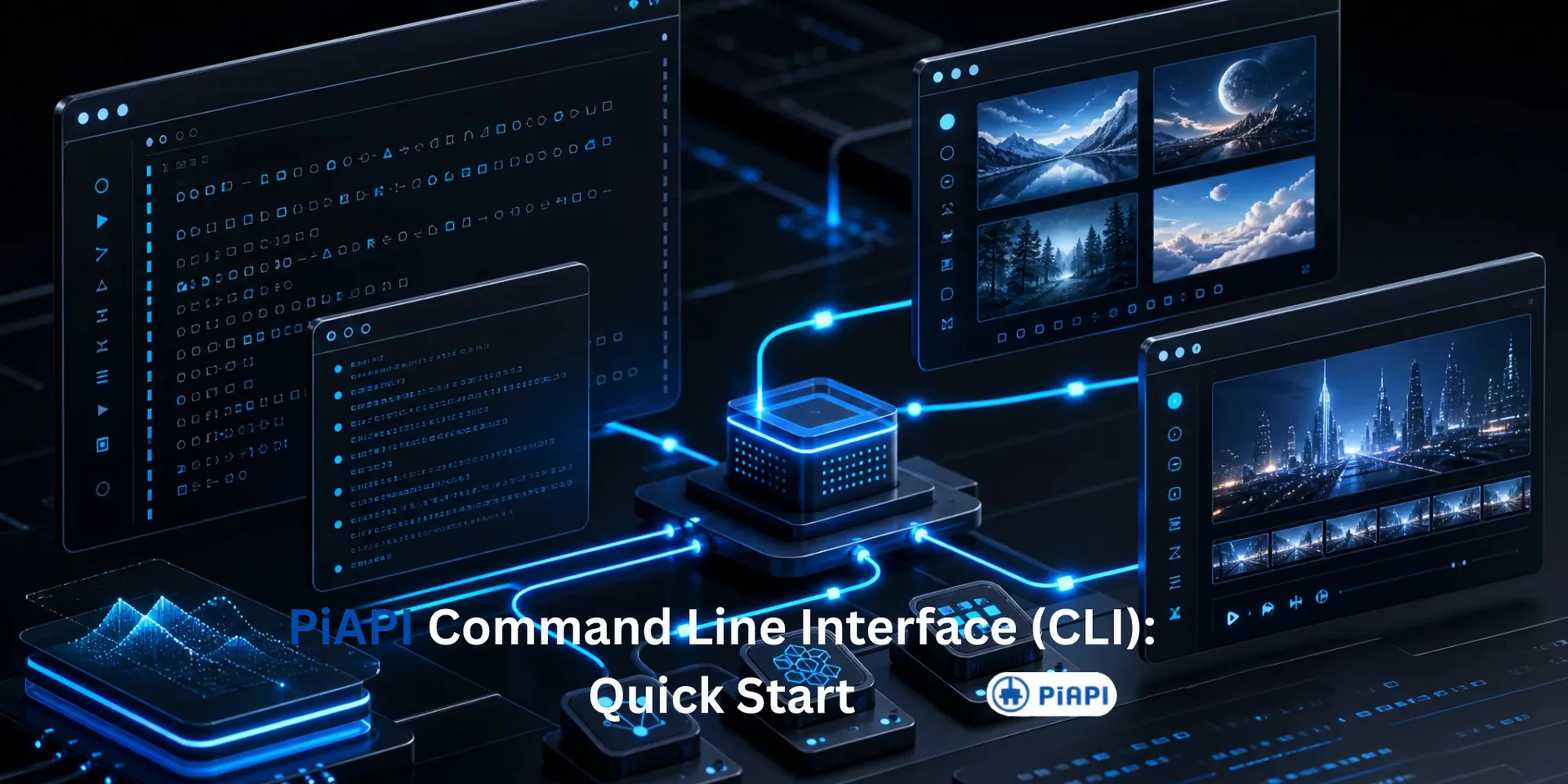
PiAPI CLI is the official command line interface for PiAPI. It lets you call multimodal AI models for image generation, video generation, audio, 3D, and LLM workflows directly from your terminal. For the full product overview, visit the PiAPI CLI page.
This quick start shows you how to install PiAPI CLI, authenticate with your API key, run your first image command, start an async video task, and discover available models. If you want an AI CLI tool for terminal-first media generation, scripts, and agent workflows, this guide gives you a short path from install to first command.
What Is PiAPI CLI?
Quick definition
PiAPI CLI is a Node.js command line tool for running PiAPI models from a terminal. It helps developers generate AI images, videos, audio, 3D assets, and LLM responses without switching to a web dashboard.
PiAPI CLI is a command line AI tool for accessing PiAPI models without opening a web dashboard. After installing the package, you can use the piapi command to run supported models, upload local files, download results, check quota, and inspect model schemas. The full PiAPI CLI overview also includes the latest command reference and supported model details.
Unlike a generic AI coding assistant, PiAPI CLI is focused on multimodal generation. Use it when you want one terminal workflow for AI images, videos, audio, 3D assets, and LLM calls.
The CLI is useful when you want repeatable AI generation workflows, terminal-first development, or automation that can be reused inside scripts and AI agents.
Why Use an AI CLI for Image and Video Generation?
An AI CLI is useful when the generation workflow starts outside a browser. Instead of clicking through a web app each time, you can save the exact command, rerun it, change parameters, and combine it with scripts.
For image and video generation, this is helpful when you need to:
- Generate assets from repeatable prompts
- Run quick tests while building an app or prototype
- Upload local files from a project folder
- Save outputs to a predictable directory
- Return JSON for scripts, CI jobs, or agent tools
PiAPI CLI is especially useful when you want to switch between model families without learning a different command line tool for each provider.
PiAPI CLI at a Glance
| Package | piapi-cli |
|---|---|
| Command | piapi |
| Runtime | Node.js 18 or newer |
| Main use case | Terminal-based multimodal AI generation |
| Useful for | Developers, automation workflows, and AI agents |
Prerequisites
Before you start, make sure you have:
- Node.js 18 or newer
- A PiAPI API key
- A terminal app
You can use PiAPI CLI globally after installation, or run it with npx if you do not want to install it first.
Install PiAPI CLI
Install the piapi-cli package with your preferred JavaScript package manager.
Expected result: the piapi command becomes available globally in your terminal.
You can also install it with pnpm, bun, or yarn.
If you plan to use PiAPI CLI often, a global install is the easiest option. If you only want to test the CLI once, run it with npx instead:
Expected result: your terminal prints the PiAPI CLI help menu.
Authenticate With Your PiAPI API Key
After installation, connect the CLI to your PiAPI account.
Expected result: PiAPI CLI stores your API key locally and can use it for future commands.
To check whether authentication is configured, run:
On shared machines, it is safer to use an environment variable instead of passing your key directly as a command argument.
PiAPI CLI reads the API key from command flags, environment variables, or the local config file.
Avoid committing API keys to scripts, docs, or repositories. Use environment variables or local config for repeatable workflows.
Generate Your First AI Image From Terminal
Once authenticated, you can generate an AI image from your terminal with piapi run.
Expected result: PiAPI CLI sends the prompt to the flux-dev model and returns the generation result in your terminal.
You can also use gpt-image-2 for OpenAI-compatible image generation.
This makes PiAPI CLI useful as an AI image generation CLI when you want to generate images from terminal commands, scripts, or agent tools.
If your workflow is focused on Flux image generation, you can also explore the Flux API for model-specific details.
Generate Your First AI Video From Terminal
Video generation usually takes longer than image generation, so video models should be started as async tasks.
Expected result: PiAPI CLI creates an async video generation task and returns a task ID you can use to check the result later.
To check the task later, copy the returned task ID and run:
Expected result: PiAPI CLI shows the current task status and result information when it is available.
This workflow is useful when you want to generate AI videos from terminal scripts without blocking your whole process.
For model-specific video workflows, see the Sora 2 API and Kling API pages.
Upload Local Files and Download Results
PiAPI CLI can upload local files when an input value starts with @. For example, this command uploads a local image, removes the background, and downloads the output into ./out.
Expected result: PiAPI CLI uploads photo.png, runs the background removal task, and saves the result in the out folder.
The --download flag saves result URLs or supported inline payloads. The --out-dir flag controls where downloaded files are written.
Explore Models and Check Quota
Use the model commands to browse available models and inspect schemas.
For a broader reference of PiAPI CLI model support, use the PiAPI CLI overview alongside the piapi model list command.
Useful PiAPI CLI Flags
| Flag | What it does |
|---|---|
--async | Returns a task ID immediately for longer-running jobs. |
--download | Downloads result files automatically. |
--out-dir <path> | Sets the folder for downloaded output files. |
--stream | Streams LLM output as it arrives. |
--dry-run | Previews a request without executing it. |
--output json | Prints JSON output for scripts and automation. |
--webhook <url> | Sends callbacks to a webhook URL. |
--quiet | Suppresses progress indicators. |
--non-interactive | Fails instead of prompting for missing input. |
For automation, --output json, --quiet, and --non-interactive are especially useful because they make CLI behavior easier to parse in scripts.
Use PiAPI CLI With AI Agents and Automation
PiAPI CLI is not only for manual terminal usage. It can also be used inside AI agent and automation workflows where a tool needs to generate media, inspect model schemas, or run repeatable tasks.
For Claude Code, Cursor, Codex, and other agent environments that support skills, the package README provides this command:
Expected result: the PiAPI CLI skill is added to your agent environment, so the agent can use PiAPI workflows more directly.
You can also use PiAPI CLI in shell scripts, CI jobs, and local automation when you need a command line interface for image, video, audio, or 3D generation.
If you are building broader automation flows, the Midjourney n8n integration guide shows how PiAPI fits into no-code and workflow automation contexts.
For scripts and agents, prefer JSON output when you need another tool to read the result.
Expected result: PiAPI CLI prints structured JSON that a script or agent can parse.
Troubleshooting Common PiAPI CLI Issues
If your first command does not work, check these common issues before changing your prompt or model.
piapi: command not found
Your terminal cannot find the global piapi command. Try opening a new terminal window, confirm the global install completed, or use the no-install command:
Invalid or missing API key
Run the auth status command:
If the CLI is not authenticated, log in again or set PIAPI_API_KEY in your environment.
Video command returns a task ID instead of a file
That is expected for async video generation. Use the task ID to check progress:
Video tasks take longer than image tasks, so the final result may not be available immediately.
When Should You Use PiAPI CLI Instead of the Web UI?
Use PiAPI CLI when you want a workflow that can be repeated, scripted, or handed to an AI agent.
The web UI is useful for visual exploration. The CLI is better when you want to:
- Generate assets from a repeatable command
- Run model calls from a script
- Upload local files without manual steps
- Save outputs into a known folder
- Use JSON output for automation
- Give AI agents access to media generation tools
- Keep image, video, audio, 3D, and LLM calls in one terminal workflow
If your work starts in a terminal, PiAPI CLI keeps the whole workflow there.
FAQ
What is PiAPI CLI?
PiAPI CLI is the official Node.js command line interface for PiAPI. It lets you call supported AI models from your terminal using the piapi command, including models for images, videos, audio, 3D, and LLM workflows.
Who should use PiAPI CLI?
PiAPI CLI is best for developers, automation builders, and AI agent users who want repeatable terminal commands for multimodal AI generation instead of manual web-dashboard steps.
How do I install PiAPI CLI?
Install it globally with npm install -g piapi-cli, or run it without installing by using npx piapi-cli@latest --help.
Can I generate AI images from terminal?
Yes. For example, you can run piapi run flux-dev prompt="a corgi in space" to send an image generation request from your terminal.
Can I generate AI videos from terminal?
Yes. Use an async video command such as piapi run sora2-pro prompt="ocean waves" --async to create a video generation task.
Does PiAPI CLI support Flux?
Yes. The package README includes flux-dev examples, including piapi run flux-dev prompt="a corgi in space".
Does PiAPI CLI support Kling?
Yes. The package README lists Kling among the supported video model families and includes kling-3 in command examples.
Can I use PiAPI CLI without installing it?
Yes. You can run npx piapi-cli@latest --help to try the CLI without a global install.
Where does PiAPI CLI save output files?
When you use --download, PiAPI CLI saves outputs to the current working directory by default. Use --out-dir <path> to choose another folder.
Is PiAPI CLI useful for AI agents?
Yes. PiAPI CLI is useful for AI agents because it exposes image, video, audio, 3D, and LLM workflows as terminal commands that agents can run or reason about.
Start Building With PiAPI CLI
PiAPI CLI gives developers and AI agents a practical way to generate images, videos, audio, 3D assets, and LLM responses from the command line. Start with installation, authenticate with your API key, then use piapi run to call the model you need.
To see the main CLI overview, visit the PiAPI CLI page. To explore the full platform, check the PiAPI docs and model catalog.