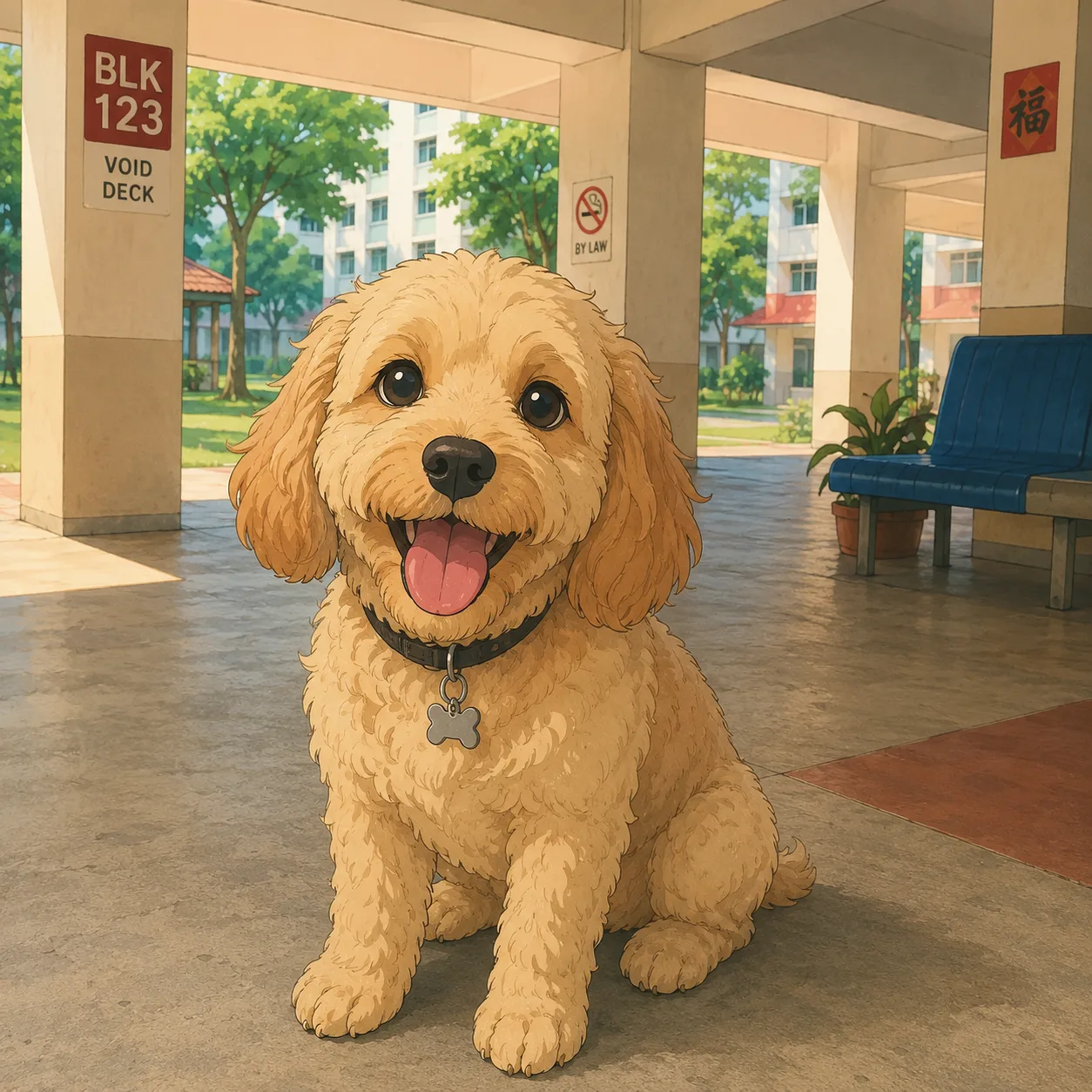
Photo to Image
Portrait to Anime Illustration
Keep the person recognizable while applying soft linework, warm light, and storybook color.
Convert your photo into a warm hand-drawn anime illustration, then animate it into a short cinematic scene with a peaceful Ghibli-inspired storybook look.
Choose photo conversion or image animation. The style prompts are already preset.
Upload a photo and convert it into a Ghibli-style anime illustration.
Upload Files
Click or drag a file (JPEG, JPG, PNG)
Upload the image you want to convert into Ghibli-style anime.
Optional. Add details you want changed, emphasized, or removed from the photo.
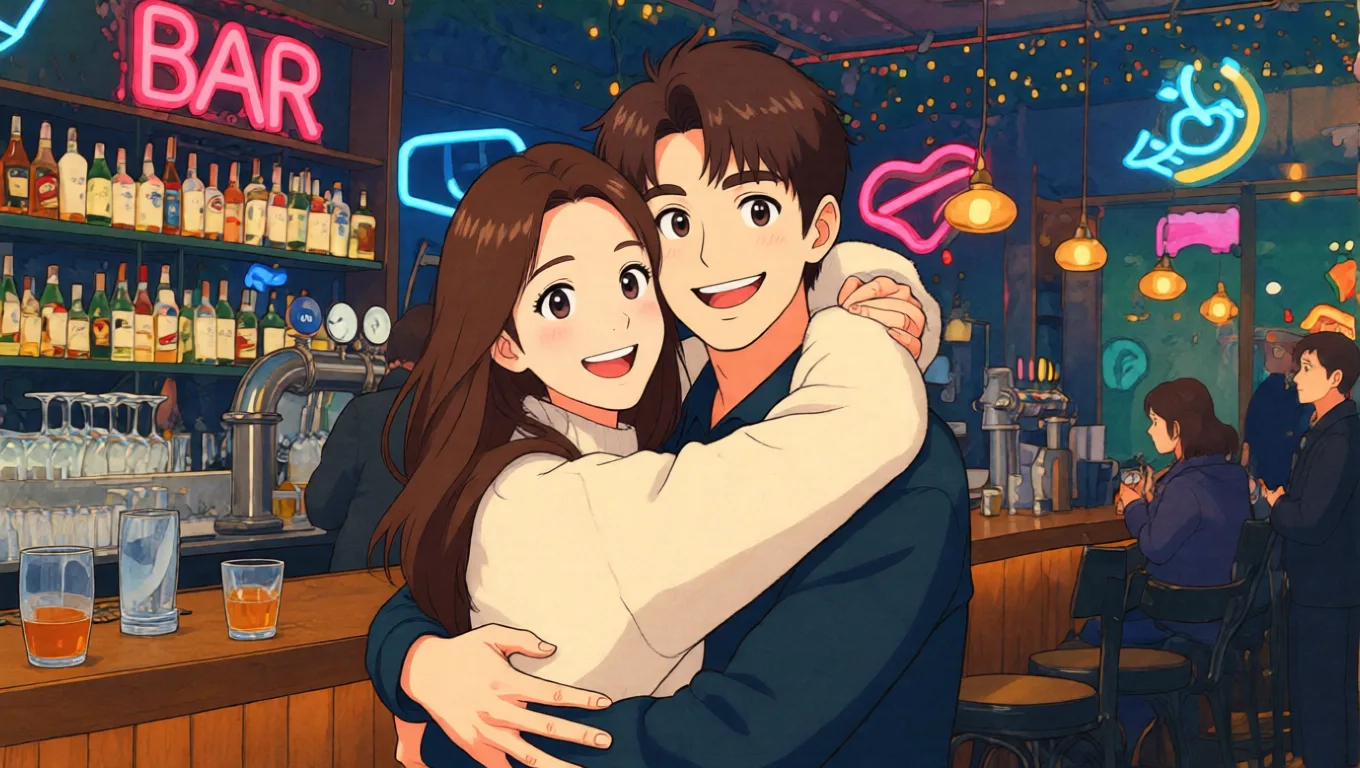
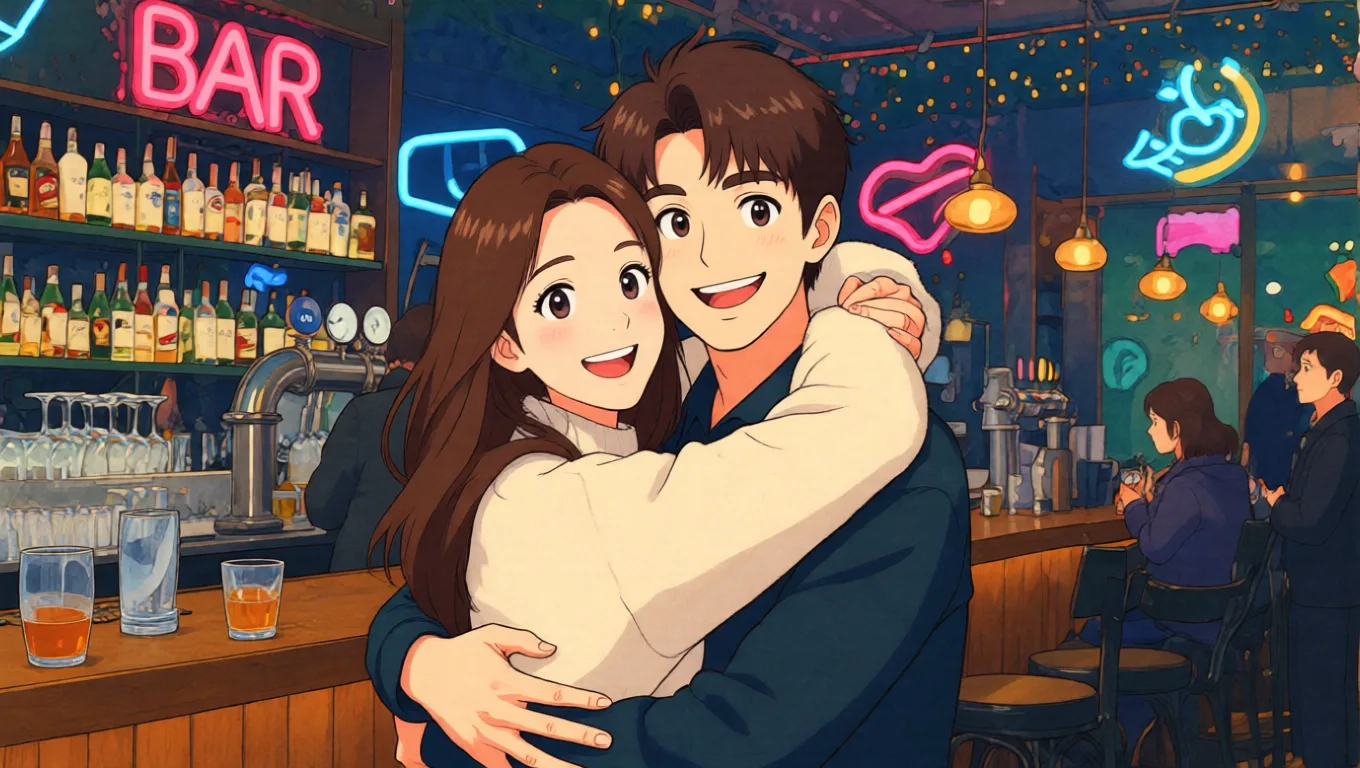
This shows preset sample previews. Sign in and click 'Generate image' to create your own.
Quick Answer
A Studio Ghibli style anime generator is an AI workflow that turns an uploaded image into a soft, Ghibli-inspired anime illustration with painterly backgrounds, warm lighting, expressive features, and nostalgic storybook color. On this page, users can convert one photo first, then animate the finished image into a short scene.
PiAPI is not affiliated with Studio Ghibli. The generator is designed for Ghibli-inspired visual styling, personal creative experiments, and photo-to-anime workflows.
Photo-first users who want a recognizable anime-style image before creating a short animated clip.
Portraits, pets, couple photos, travel memories, rooms, and products
Creators who want the subject and scene to stay recognizable
How To
The fastest workflow is photo first: upload one clear image, create a Ghibli-inspired still, then animate that still only if you need motion.
Upload one image with a clear subject, such as a portrait, pet, product, or travel scene.
Select Photo to Image to create a Ghibli-inspired anime illustration while preserving the subject and composition.
Add optional edit notes if you want warmer lighting, fewer background distractions, or a more storybook mood.
Use the generated still in Animate Image mode when you want a short cinematic clip.
Examples
Browse photo-to-anime ideas and short animation previews before you create your own.
Keep the person recognizable while applying soft linework, warm light, and storybook color.
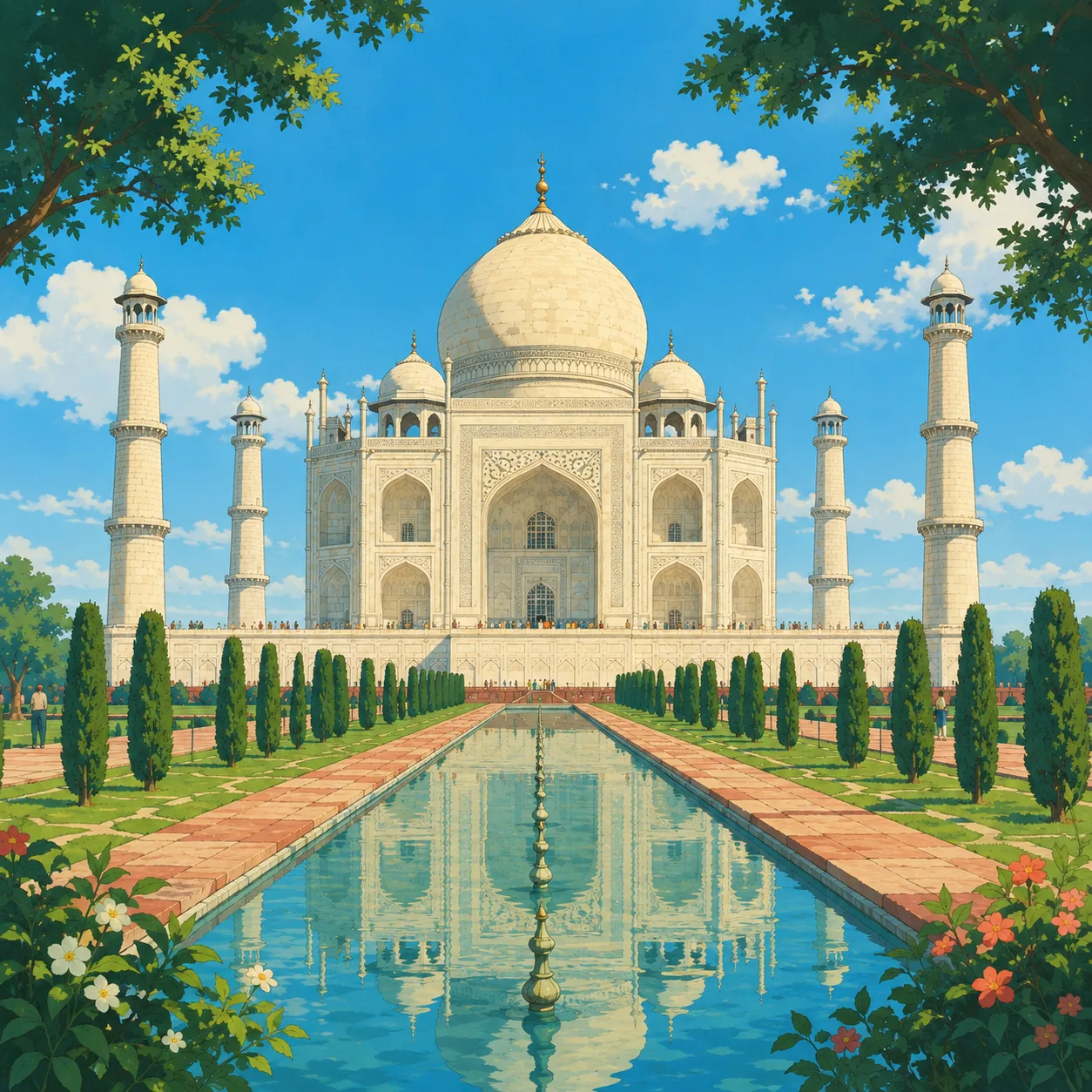
Turn real-world scenery into a painterly anime background with nostalgic atmosphere.
Animate one stylized image with gentle camera motion, drifting clouds, and soft breeze.
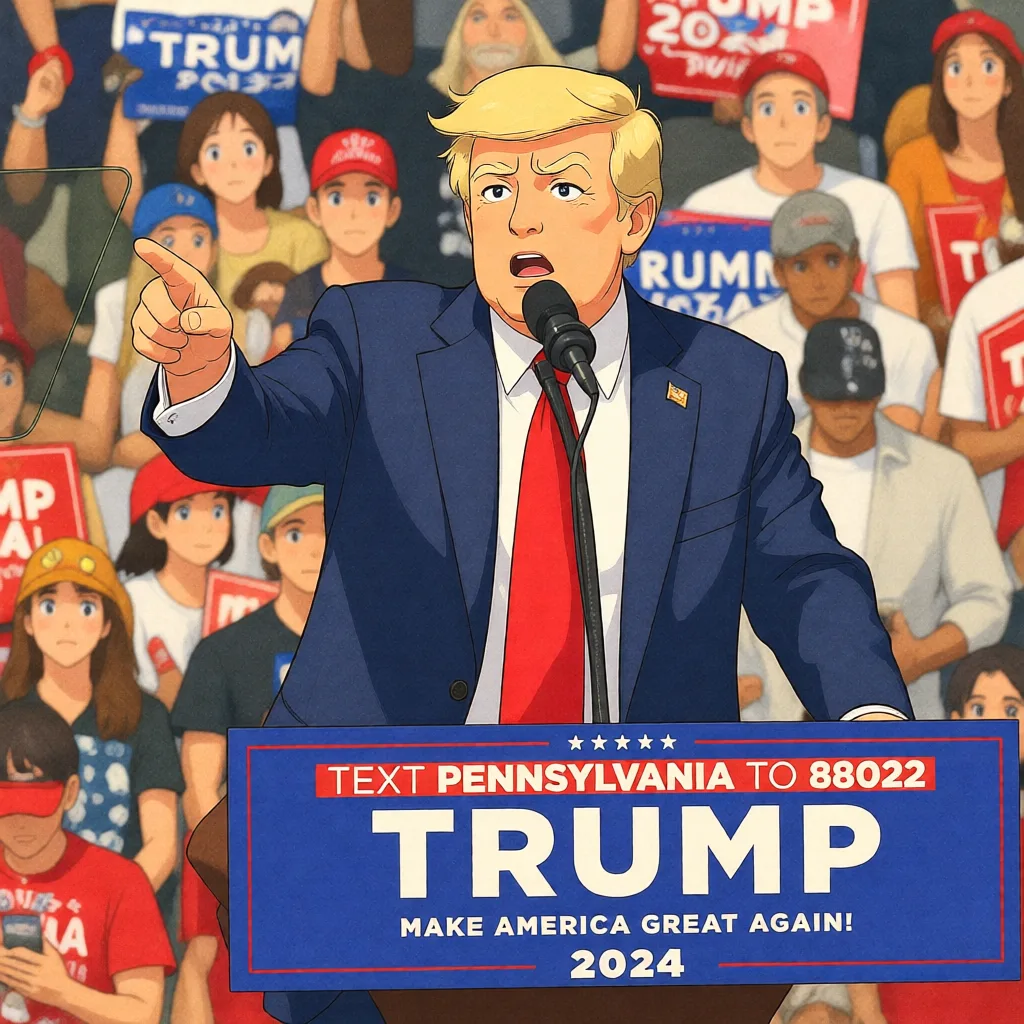
Turn a public figure image into a hand-drawn anime-style illustration while preserving the pose and scene.
Modes
Use the image mode when the final deliverable is an illustration. Use the video mode when you already have one image and want a short animated result.
Start here
Portraits, pets, couple photos, travel scenes, rooms, products
A still Ghibli-style anime illustration
Practical tip
Use this first when you want a more consistent video later.
Animate next
Animating one generated or uploaded image
A short cinematic clip with subtle motion
Practical tip
Add motion notes such as breeze, camera push, clouds, or hair movement.
Workflow
Start with a portrait, pet, travel photo, room, product, or any image with a clear subject.
Use Photo to Image first. This creates a consistent anime-style still image with the subject and scene preserved.
Pass the converted Ghibli-inspired image into Image to Video. This keeps the character, colors, and scene style more stable.
Add optional motion notes such as breeze, camera push, hair movement, or drifting clouds, then generate the video.
You can upload a normal image straight into Image to Video mode. This skips the Photo to Image step, so the animation may not fully match the Ghibli style or may look less consistent. Add motion notes and regenerate if the result is not what you expected.
This page does not try to cover every text and video mode. It focuses on the two workflows users are most likely to want: upload a photo, get a stylized anime image, then animate that image when needed.
Best fit outputs
Practical things users can create from one uploaded image.
Profile pictures
Works well with a clear subject image.
Social posts
Works well with a clear subject image.
Pet portraits
Works well with a clear subject image.
Couple photos
Works well with a clear subject image.
Travel memories
Works well with a clear subject image.
Storybook concepts
Works well with a clear subject image.
Short cinematic clips
Works well with a clear subject image.
Creator experiments
Works well with a clear subject image.
More Tools
Try more image and video creation workflows from the same PiAPI tools collection.
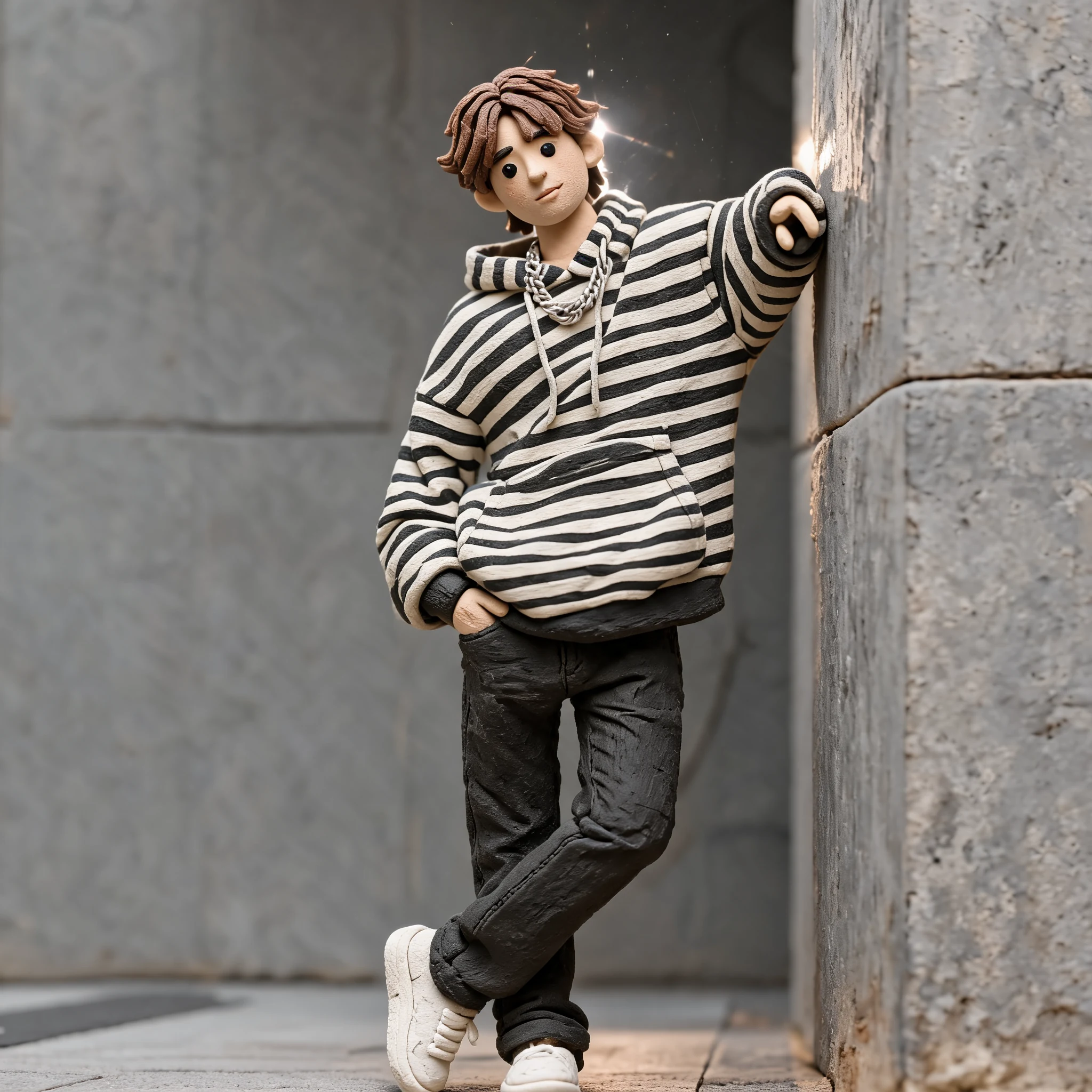
Create clay-style images and videos from prompts, images, or video inputs.
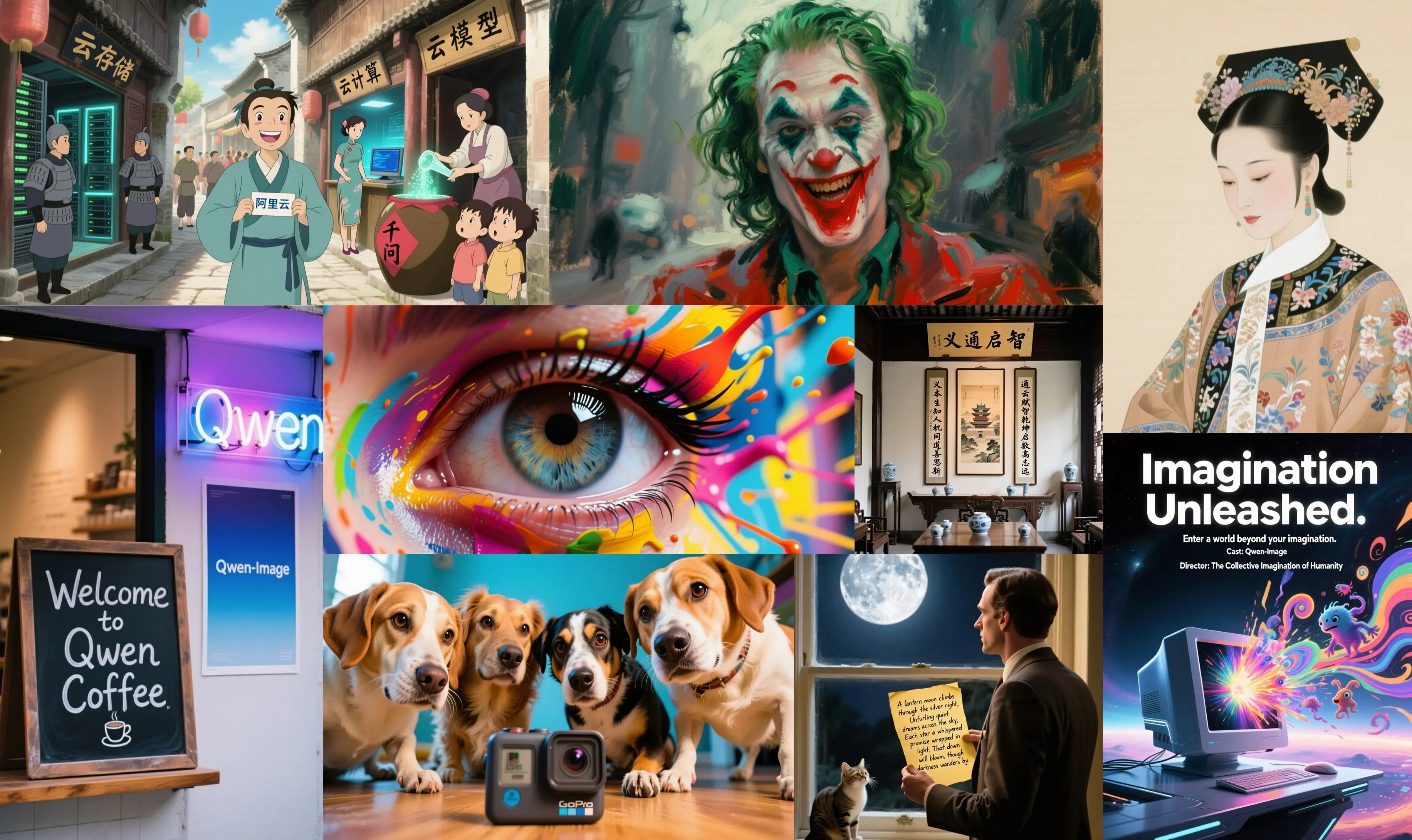
Use Qwen Image and Qwen Image Edit for image generation and editing workflows.
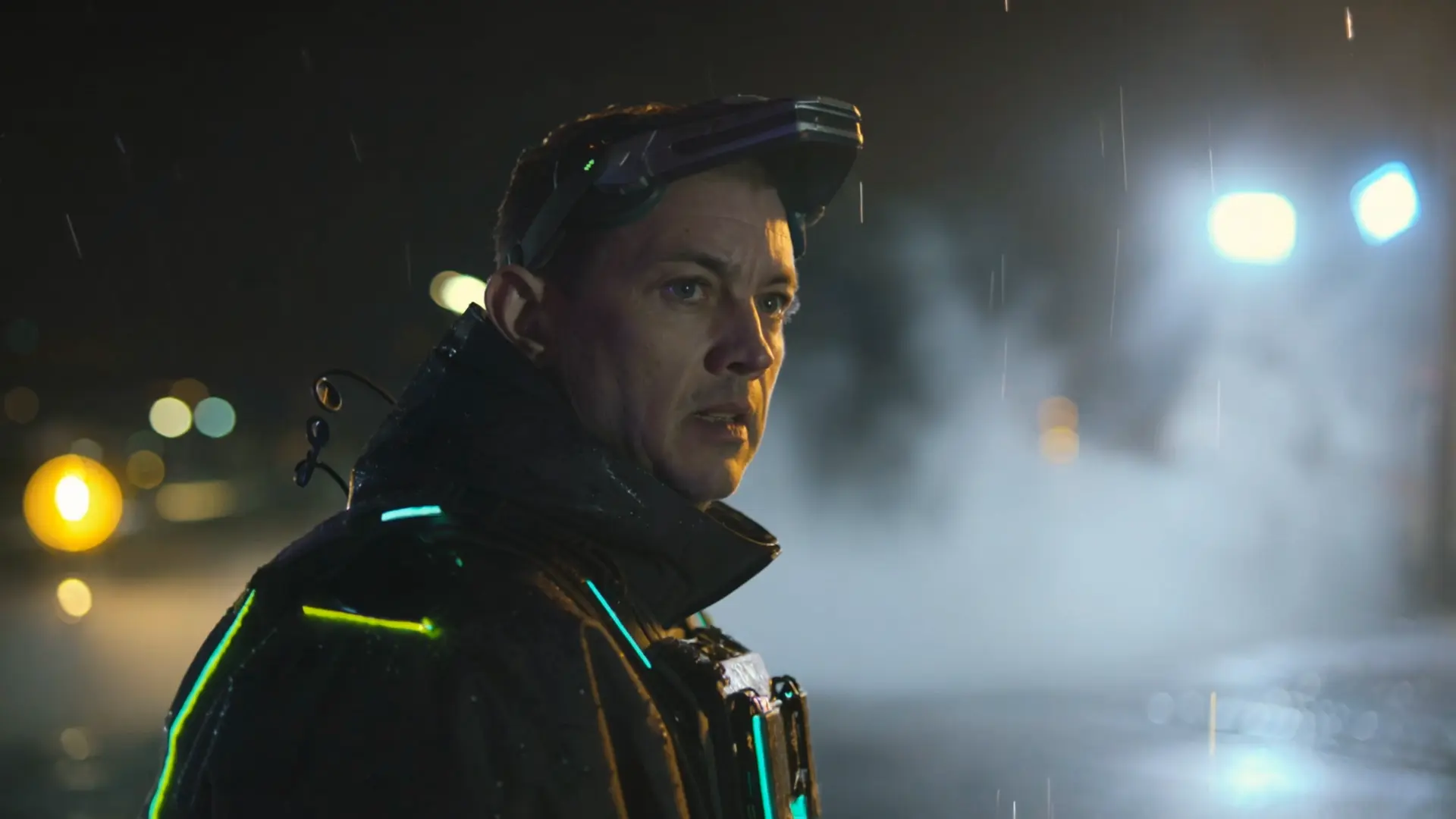
Create cinematic image-to-video scenes when you need more advanced motion controls.

Create warm hugging videos from a single uploaded image.
Related Guides
Use these guides to improve still-image generation and animation consistency before creating your own result.
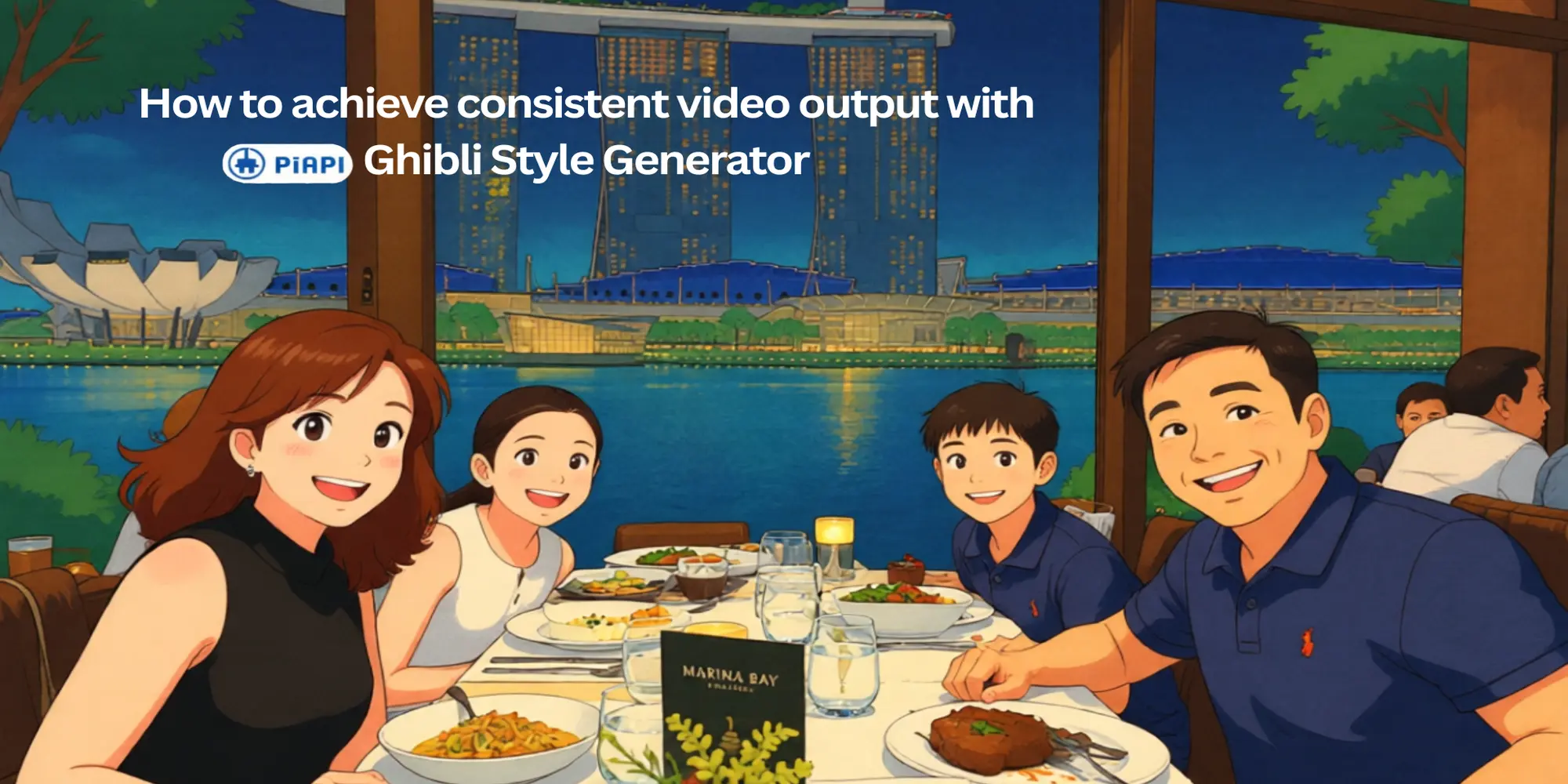
Blog Guide
Learn the photo-first workflow for turning Ghibli-style still images into more consistent cinematic videos.
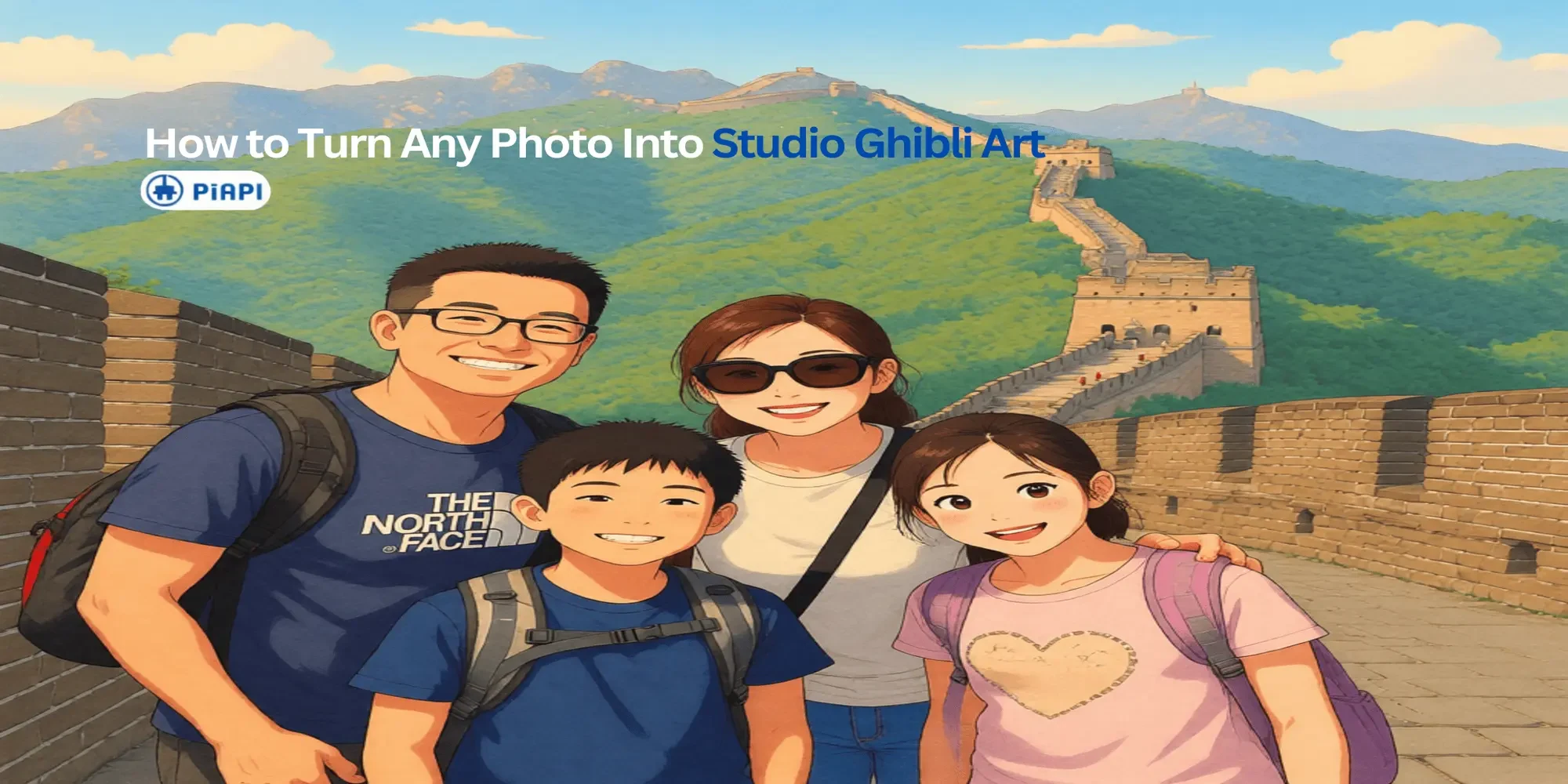
Blog Guide
See how to convert photos into Ghibli-style images, choose better source photos, and fix common AI image issues.
It is an AI workflow that converts uploaded photos or images into warm, hand-drawn anime-style illustrations with soft color, expressive characters, painterly backgrounds, and a nostalgic storybook feel.
Yes. Upload one image in Photo to Ghibli Style mode, and the preset image editing workflow will transform it while keeping the subject, pose, face, outfit, and scene layout recognizable.
Yes. Animate Ghibli Image mode turns one uploaded or generated image into a short cinematic animation with gentle motion, warm light, drifting clouds, and subtle background movement.
Not in this first version. The page focuses on image-to-image and image-to-video because those modes are more reliable for portraits, real-world photos, and shareable visual results.
No. The page includes hidden preset prompts for both photo conversion and image animation. You can add optional edit or motion instructions, but the default workflow is designed to work from upload to generate.