
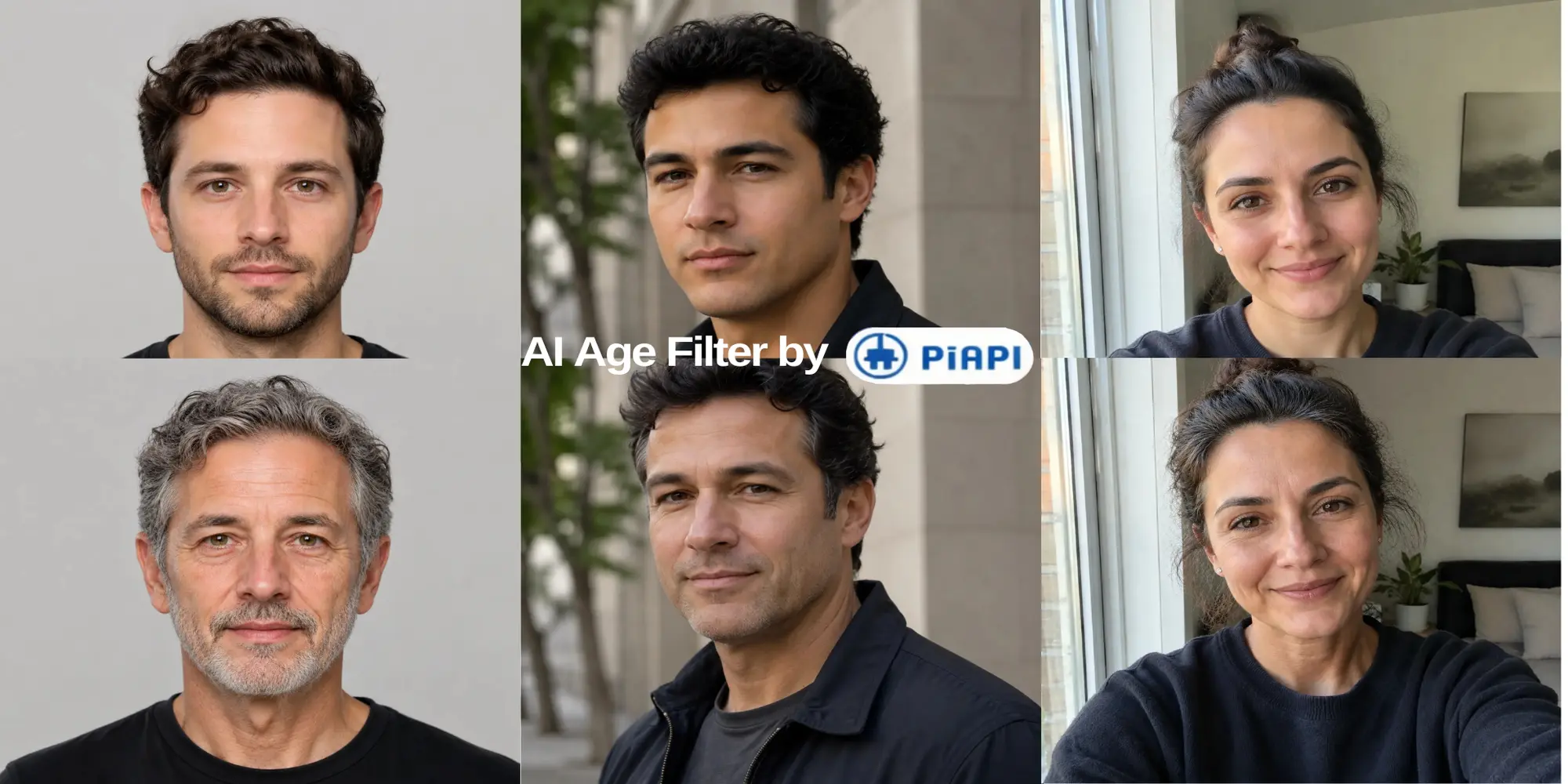
Age transformation
A realistic age progression example.

Generated with this template
Sign up and grab an API key from the PiAPI workspace — free credits are included on sign-up.
Add credits on the billing page when you are ready to scale beyond the free tier.
POST your first task following the API docs, then poll the task until the result is ready.
Use the API docs and the request example above to iterate on prompts and settings before wiring them into your product.
An AI age filter is an image editing tool that changes the apparent age of a person in a portrait while trying to preserve recognizable identity. Age progression makes someone look older; age regression makes them look younger.
Upload one clear portrait, select a target age, and create the transformation. When it finishes, compare the output with the original photo.
Yes. Choose an older target age and use a well-lit portrait. The model may adjust skin texture, hair, facial fullness, jawline, and the eye area while preserving the same person.
Yes. Choose a younger target age. For the most believable result, keep the target realistic and use a sharp, front-facing portrait.
No. It is a creative image transformation based on learned visual patterns, not a scientific or medical prediction.
New PiAPI accounts receive starter credits to try supported playground generations. Usage is limited by your available credit balance.
More questions? See the API docs.