
How to Make AI Dance Videos: Presets, Reference Videos, and Troubleshooting Tips
AI dance videos animate a person, avatar, or character image with a dance motion. The basic inputs are one subject image and either a built-in dance preset or a custom reference video.
The same motion can produce different results depending on the source composition and how clearly the hands and feet are visible. This guide explains how to make an AI dance video from one photo, choose a motion source, prepare the input image, and troubleshoot common problems using two original examples.
Key points: Start with a built-in preset for the quickest test. Use only reference videos you have permission to use. Choose a full-body image with visible limbs and open space around the subject. Change one variable at a time when troubleshooting.
What is an AI dance video?
Definition: An AI dance video is a generated video that applies movement from a preset or reference video to a still subject image. It lets a photo or character perform a dance without filming the subject or manually animating every frame.
The basic relationship is “subject image + motion = generated video.” The appearance mainly comes from the image, while the movement changes with the selected motion source. Review these inputs separately when diagnosing a result.
How to make an AI dance video from one photo
PiAPI's Kling AI Dance Generator uses Kling 2.6 Motion Control to apply dance motion to a still image. The workflow has five steps:
- Prepare the subject image: Choose an image with one person or character and as much of the full body visible as possible.
- Upload the image: The current playground accepts JPEG, JPG, and PNG images.
- Choose the dance motion: Select a built-in preset for a quick start or a custom reference video for a specific motion.
- Review the settings and generate: Check the available orientation, quality, and source-audio controls before submitting.
- Review the entire video: Watch the face, hands, feet, clothing, and framing from beginning to end. When retrying, change only the image, motion, or one setting so the difference is easier to judge.
Should you use a preset or a reference video?
Choose a preset for a quick test and a reference video when you need a specific movement. Both require a subject image, but their preparation and level of motion control differ.
| Comparison | Dance preset | Custom reference video |
|---|---|---|
| Required assets | Subject image | Subject image and a video you may use |
| Preparation | Minimal | A suitable reference clip is required |
| Motion source | Select from provided choices | Uploaded clip guides the motion |
| Best for | Fast prototypes and style comparisons | Trying specific choreography or movement |
For a first test, use a preset to check whether the source image works well with motion. Switch to a custom reference if the preset list does not contain the movement you need. For a broader tool comparison, see our guide to choosing an AI dance generator.
What makes a good input photo for AI dance?
A full-body image is usually easier to evaluate than a tightly cropped portrait because it reveals the body's position and the limbs. Check the following before uploading:
- Keep one main person or character in the image.
- Show the full body or most of it inside the frame.
- Make the face, torso, arms, hands, legs, and feet visible where possible.
- Avoid crossed limbs or hands and feet hidden by clothing or objects.
- Use a subject that is easy to distinguish from the background.
- Leave space above, below, and beside the subject for larger movements.
- Use a sharp image with a clearly readable starting pose.
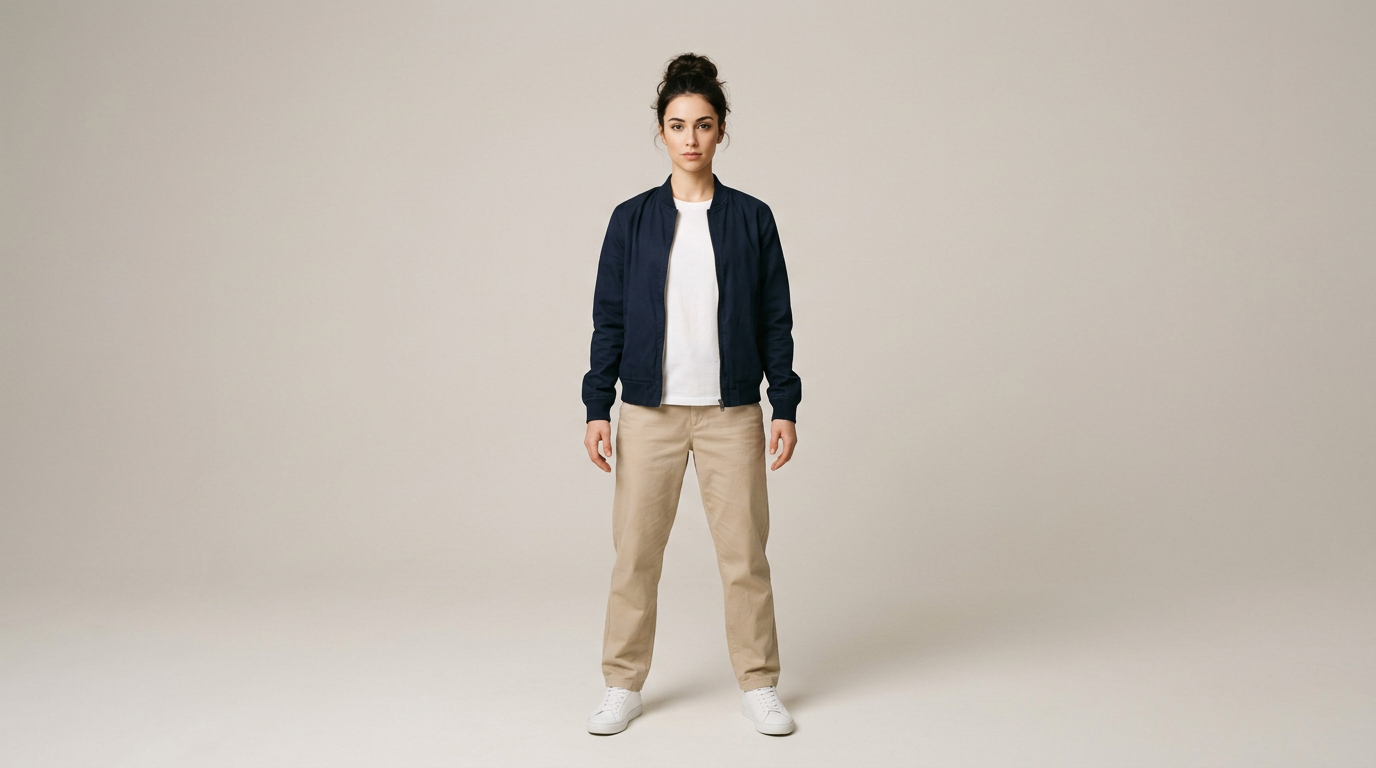
These checks do not guarantee a perfect result, but they make it easier to separate input problems such as hidden hands or insufficient framing from motion-related problems.
How to choose a custom reference video
PiAPI's playground supports custom reference-video uploads as well as built-in presets. This is useful for choreography that is not available in the preset list or a specific movement from an approved clip.
Choose a clip with one clearly visible dancer, the body and limbs inside the frame, and limited camera shake, cuts, and strong motion blur. Use only a video for which you have permission to generate and publish derivative output.
We did not generate a custom-reference result for this article, so this guide does not compare its output quality or motion accuracy with the presets.
Example: animating the same photo with Phonk Dance and Scuba Dance
Test conditions (July 23, 2026): We applied two built-in presets to the same input image. The supplied Phonk Dance output is 14.93 seconds and the Scuba Dance output is 7.67 seconds. Quality mode, orientation, task ID, cost, and retry count were not recorded.
Because the preset outputs have different durations, this is not a controlled performance benchmark. The examples show how we reviewed subject consistency, hands, feet, clothing, and framing.
Phonk Dance: a large-motion example that stays inside the frame
Generated example: the same input image animated with the Phonk Dance preset.
The Phonk Dance output includes sideways steps, raised arms, crouching, and forward movement. The face, hairstyle, navy jacket, white shirt, and beige trousers remain broadly consistent, and the full body stays inside the frame.
During faster hand movement, the fingertips briefly become less distinct. The source motion used inside the preset is not displayed, so we did not score exact choreography reproduction.
Scuba Dance: an example for reviewing expression and overlapping hands
Generated example: the same input image animated with the Scuba Dance preset.
The Scuba Dance output includes forward gestures, crossed arms, sideways steps, and a low crouch. Clothing colors, hairstyle, body proportions, and the background remain broadly consistent, with no obvious breakdown in the legs or shoes.
The expression becomes more cheerful than the source image near the beginning. The hand shape also looks less clear where a hand overlaps the face or torso. Review expression, hand overlap, and framing throughout the complete output—not just the first seconds.
Why AI dance videos fail and what to try next
An unwanted result rarely proves one specific cause. Identify the most visible symptom, then change one input or setting in the next generation.
| Symptom | Possible cause | What to try next |
|---|---|---|
| Hands or feet look unstable | Limbs are hidden, motion is fast, or a hand overlaps the body | Use an image with clearer limbs or try another preset |
| Face or clothing changes | Subject is small, image is unclear, or there are many overlaps | Replace it with a sharper image containing one clear subject |
| Motion does not match the intent | The selected preset or reference differs from the intended movement | Change the motion source while keeping other settings fixed |
| Body leaves the frame | There is too little space around the subject | Use an image with more open space on every side |
| It is unclear which change helped | Several inputs or settings changed together | Change the image, motion, and settings one at a time |
This process is a diagnostic method, not a guarantee of improvement. Fast hand movement and body overlap can only be judged by playing the generated video from beginning to end.
Try PiAPI's Kling AI Dance Generator
PiAPI's Kling AI Dance Generator is a browser interface for Kling 2.6 Motion Control. Upload an image and select a dance preset or custom reference video to generate an AI dance video. Test the image and movement in a short demo, then continue to Kling 2.6 Motion Control or the Kling 2.6 API when you need a development workflow.
Frequently asked questions
Can I make an AI dance video from one photo?
Yes. Upload one subject photo or character image, then choose a dance preset or custom reference video. Start with one full body, visible hands and feet, and clear space around the subject.
Do I need a reference video?
No. Built-in dance presets let you test the workflow without preparing your own reference video. Upload a custom reference video only when you want a specific movement and have permission to use it.
What photos work best for AI dance videos?
Use a clear image with one main subject, most or all of the body visible, unobstructed hands and feet, and open space around the subject.
What should I do if hands or feet look distorted?
Try an image with clearer limbs or a different dance preset. Keep other settings unchanged and adjust one variable at a time.
Can I use a character instead of a person?
Yes, character images can be used as input. Start with one clearly visible subject and make sure the face, torso, arms, and legs are easy to distinguish.
Can I try an AI dance video for free?
At the time of this article's review (July 23, 2026), PiAPI's Kling AI Dance Generator offered a five-second free demo. Availability, account requirements, and credit terms may change, so check the current playground before generating.
Summary
Use a preset for the fastest test and a custom reference video when you need a specific motion. In both cases, begin with a full-body image with visible limbs, then review the whole output.
Switch between presets with the same image first to find the movement that best matches the intended style.
Try AI dance video generation from one photo
Upload one image and choose a dance preset to create an AI dance video with PiAPI's Kling AI Dance Generator.