
AI age transformation

AI Age Filter Tool

Create realistic age progression and age regression from a portrait. Choose a target age and preserve recognizable facial identity through PiAPI.

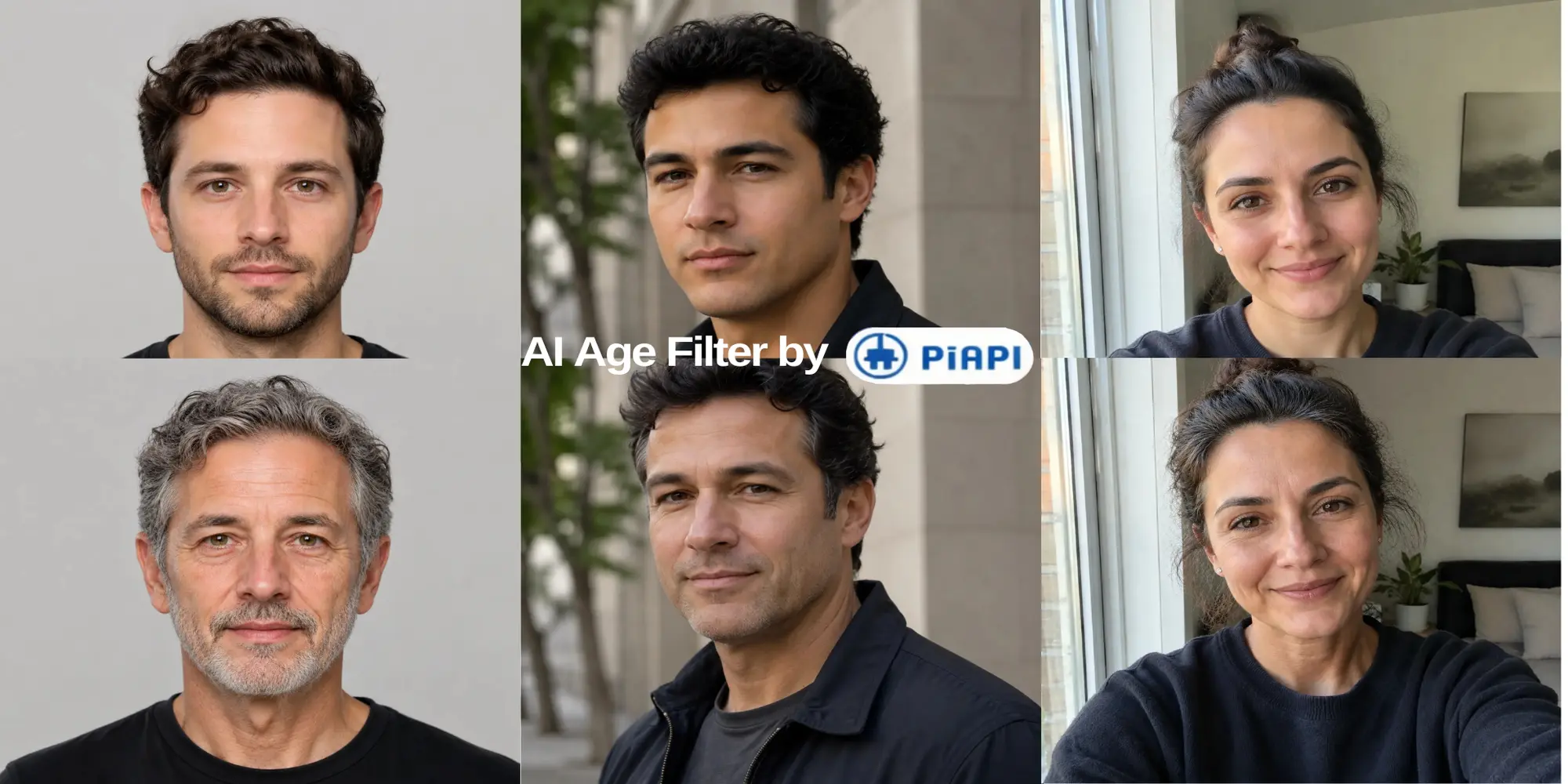
Before and after AI age filter portrait comparison showing realistic age progression

Age range

5 to 80

Use case

Older or younger portraits

Result style

Photorealistic portrait

Try It Now

AI age filter playground

Upload one selfie, choose a target age, and generate a realistic older or younger portrait.

AI Age Filter Playground

AI age filter playground

Upload one selfie, then drag the target age slider from 5 to 80.

Only your selfie and target age are required.

Input image

📁

Select Files

Click or drag a file (JPEG, JPG, PNG)

Upload one clear selfie or portrait. Use your own photo or an image you have permission to edit.

55080

Drag the slider to choose the age you want the output portrait to appear.

Result

Idle
AI Age Filter sample result preview

This shows preset sample previews. Sign in and click 'Generate image' to create your own.

If generation times out or fails to fetch, please try again.

AI age filter example grid showing realistic age transformations at multiple ages

Age Controls

Choose the target age, not just an old-face effect

Use the age slider to choose the target age for the output portrait. PiAPI keeps the workflow simple: upload, choose an age, and generate.

Identity preservation

Keep the same face recognizable instead of swapping to a different person.

Full age commitment

Avoid tiny edits. The transformation should clearly commit to the selected age.

Face and head details

Age-related changes should include skin, eyes, jawline, neck, hairline, hair density, and hair color.

Photorealistic restraint

The result should look like a real photo, not makeup, a beauty filter, or exaggerated wrinkles.

Quick Answer

What is an AI age filter?

An AI age filter transforms a portrait so the same person appears older or younger while keeping their identity, pose, lighting, and composition recognizable. For PiAPI, the workflow uses gpt-image-2 to adjust age-related facial details such as skin texture, facial fullness, jawline, hairline, hair color, and eye area.

Step 1

Upload one clear portrait

Use a front-facing photo with one main person, visible face details, and stable lighting.

Step 2

Choose a target age

Drag the age slider from 5 to 80 to choose how old the output portrait should appear.

Step 3

Generate the output

Click generate to create the age-transformed portrait. The result panel will show the output image.

Tool Details

AI Age Filter powered by gpt-image-2

This AI Age Filter uses gpt-image-2 through PiAPI to generate realistic age-adjusted portraits from a selfie and target age.

Model

gpt-image-2

Age range

5 to 80

Use case

Older or younger portraits

Result style

Photorealistic portrait

Input Tips

Best photos for AI age progression

Use one person in the image.
Choose a clear face angle with both eyes visible.
Avoid sunglasses, masks, heavy filters, and motion blur.
Use natural lighting so skin texture and facial structure are readable.
Avoid very young target ages until more public examples confirm quality.

FAQ

AI Age Filter FAQ

An AI age filter edits a portrait so the same person appears older or younger. A strong age filter preserves identity while changing age-related facial characteristics such as skin texture, facial fullness, jawline, hairline, hair color, and eye area.

AI age progression is a creative simulation, not a prediction of future appearance. Use photos you own or have permission to edit.