

How to Upscale Images and Increase Resolution
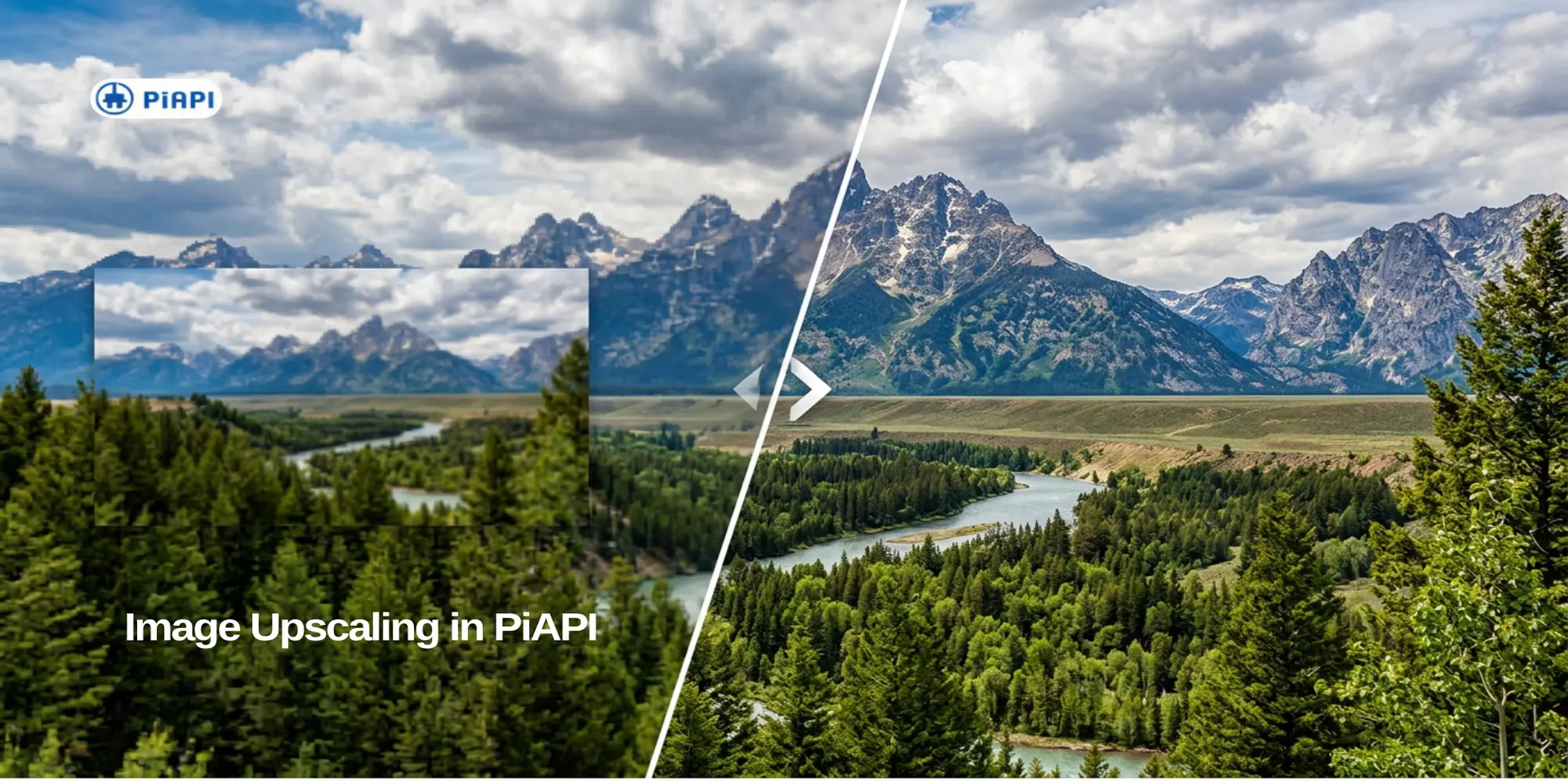
To upscale images means increasing their width and height in pixels. The result has larger pixel dimensions, which can make an image more suitable for bigger digital layouts, product pages, presentations, or further editing. The right scale factor depends on the resolution of the source image and where you plan to use the output.
The PiAPI Image Upscaler lets you enlarge an image by 2x, 4x, or 8x. A higher resolution does not automatically create more authentic image detail, so review the result at the size in which it will appear.
Key takeaways
- Upscaling increases both the width and height of an image.
- The 2x, 4x, and 8x factors apply to both dimensions.
- Choose the lowest factor that reaches the required output size.
- Check edges, textures, and small text after enlarging the image.
In this article
- What does image upscaling mean?
- Increase resolution in three steps
- Choose 2x, 4x, or 8x
- When image enlargement is useful
- What to check for image quality
- Process multiple images through an API
- Frequently asked questions
What does image upscaling mean?
Image upscaling increases the pixel dimensions of a file. A scale factor applies to both sides: 2x doubles the width and height, 4x multiplies each dimension by four, and 8x multiplies each dimension by eight.
The total pixel count grows more quickly. A 2x output contains four times as many pixels as the input. At 4x, the output contains 16 times as many pixels, while an 8x output contains 64 times as many. These figures help you estimate the target resolution before processing a file.
More pixels do not add source information; clarity still depends on the original image.
How to increase image resolution in three steps
An image upscaler lets you increase image resolution without a long editing process:
- Upload an image: Open the PiAPI Image Upscaler and select the file you want to enlarge.
- Choose a scale factor: Select 2x, 4x, or 8x based on the output dimensions you need.
- Review the result: Start processing, then inspect the enlarged image at the size in which it will be used.
Calculate the target dimensions before selecting a factor. A lower factor may already be enough and produces a more manageable file.
2x, 4x, or 8x: Which factor should you choose?
The largest factor is not always the most practical choice. Start with the dimensions the final asset actually requires.
| Factor | General use | What to consider |
|---|---|---|
| 2x | Moderate enlargement and digital content | Often enough when the source is already close to the target size |
| 4x | Larger layouts, presentations, or product images | Review small text, edges, and fine structures after processing |
| 8x | Very large output dimensions or specialized workflows | Limitations in the source may become more visible at a high scale factor |
To upscale an image to 4K, compare its existing pixel dimensions with the target resolution first. “4K” describes a target resolution; it does not automatically mean that you should select the 4x factor.
When is image enlargement useful?
Image enlargement is useful when an existing file is too small for its next placement. Common uses include product images for online stores, graphics for presentations, marketing assets, and illustrations that need to fit a larger layout.
Print preparation may also require a higher resolution, depending on the final size and the print provider's requirements. For websites, match the image dimensions and file size to its displayed size.
What should you check for image quality?
Start with a clear source file. Heavy compression, blur, or visible artifacts may become more noticeable after enlargement. Inspect outlines, small text, faces, flat areas, and fine patterns in the processed output.
“Without quality loss” always depends on the source. Larger dimensions do not guarantee new authentic detail, so use the lowest factor that reaches the target size and looks clean in context.
Process multiple images with an Upscaling API
An online tool suits occasional files. For regular or integrated processing, an Upscaling API can support ecommerce catalogs, media libraries, and software products without handling every image manually.
PiAPI provides the Clean & Upscale Workspace for this workflow. Before integrating it, check the current API parameters, input requirements, and pricing against your image volume and output needs.
Frequently asked questions about upscaling images
What does it mean to upscale an image?
Upscaling increases an image's width and height in pixels. A 2x factor doubles both dimensions, while 4x and 8x produce larger outputs. Review the result for visible quality issues at its intended display size.
Can you enlarge images without losing quality?
A higher pixel count does not guarantee a lossless improvement. Results depend on the source, scale factor, and display size. Start with a clear input, then check edges, text, textures, and compression artifacts.
When should you choose 2x, 4x, or 8x?
Use 2x for a moderate increase, 4x for larger dimensions, and 8x only when required. Calculate the target width and height first; the lowest sufficient factor simplifies output and quality control.
Can you upscale multiple images through an API?
Yes. An Upscaling API supports repeat or integrated workflows without processing each file manually. Product catalogs, media platforms, and automated asset pipelines are common uses. Review current API requirements and billing before implementation.
Increase resolution with PiAPI
Determine the target dimensions first, then choose 2x, 4x, or 8x. Review the output in its real use context rather than judging it only by the larger pixel count.
Open the PiAPI Image Upscaler, upload your image, and choose the appropriate scale factor. For repeat workflows, the Clean & Upscale Workspace also provides access to the Upscaling API.