

Seedance 2 Real Face Tutorial: Generate Human Video Assets with PiAPI
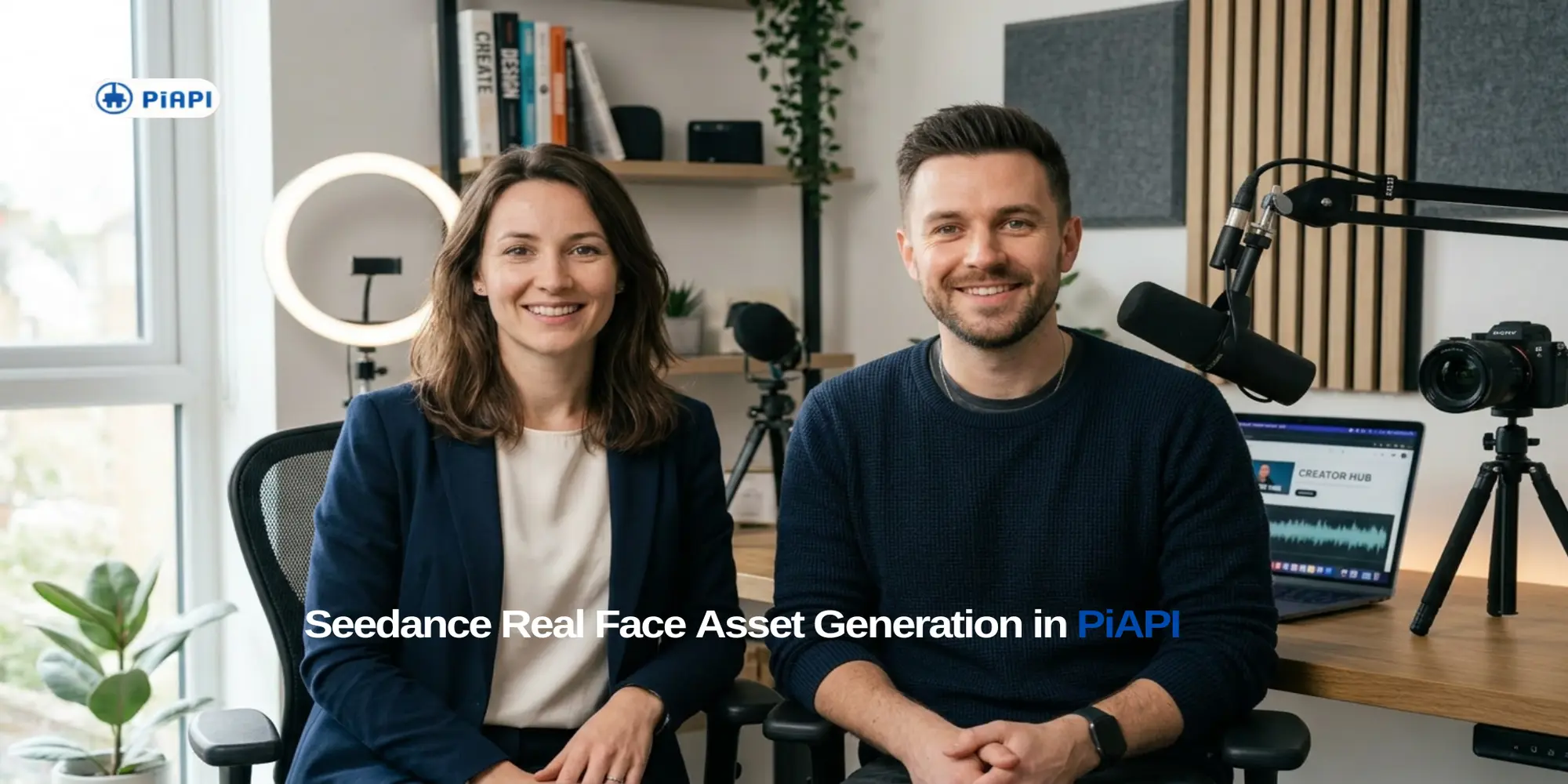
Seedance real face generation is useful when you want a human reference image to become a realistic short video: a presenter speaking to camera, a creator-style clip, or a product ad where a person and product both need to stay recognizable.
This tutorial focuses on the practical PiAPI playground workflow. You will use the Seedance 2.0 playground, choose Less Restriction, choose Face Reference, upload a consented real-person image, and write prompts with `@image1` so Seedance understands what the uploaded reference represents.
Definition: Seedance real face generation means using a consented human face or person image as a reference for Seedance video generation, so the output keeps the person's general identity, expression, pose, and scene role more consistently than a text-only prompt.
Key Takeaways
- Use the Seedance 2.0 playground first when you want to test real face or real people generation quickly.
- Choose Less Restriction and Face Reference for the playground workflow shown in this guide.
- Upload a clear, consented portrait or human reference image directly in the playground.
- Use `@image1`, `@image2`, and similar labels in the prompt to explain what each uploaded image represents.
- Use Private Asset Library only when you need a reusable, verified, or API-managed reference workflow.
- Judge results by identity consistency, facial realism, natural motion, lighting, and scene fit.
What Is Seedance 2 Real Face Generation?
Seedance 2 real face generation is an image-to-video workflow where a face or full person image guides the generated video. Instead of asking for "a realistic spokesperson" from text alone, you upload a human reference and tell Seedance how that person should move, speak, pose, or interact with the scene.
The goal is not classic face swap or pixel-perfect face replacement. A better expectation is reference-guided video generation. The uploaded person helps Seedance preserve the look and role of the subject while creating a new video clip around that reference.
This makes the workflow useful for:
- creator avatar tests;
- talking-head spokesperson clips;
- profile-to-video demos;
- product ads with a real person reference;
- internal creative review before building an API workflow.
Can Seedance 2 Use Real People?
Yes, Seedance 2 can use real-person references in the PiAPI playground when the workflow supports face reference generation. For this tutorial, use a consented image of the person and test in the Seedance 2.0 playground.
Quick answer: To try Seedance real face generation in PiAPI, open the Seedance 2.0 playground, choose Less Restriction, choose Face Reference, upload a consented person image, set duration and quality, then write a prompt that uses `@image1` to describe the uploaded face or person reference.
Use this responsibly. Only upload people, faces, creators, employees, actors, or customers when you have the right to use that reference for generation.
Prepare A Good Real Face Reference Image
The face reference does most of the heavy lifting. A better input image usually gives you a more stable output.
Use a reference image with:
- one main person clearly visible;
- sharp eyes and visible facial features;
- natural lighting without heavy shadows;
- minimal filters, beauty effects, or motion blur;
- a useful crop, such as head-and-shoulders or upper body;
- clothing and background that do not distract from the face;
- permission or ownership for the person shown.
Avoid images where the face is tiny, angled too far away, blocked by hands or sunglasses, heavily stylized, or mixed with too many people.
When Private Asset Library Is Needed
For this playground tutorial, you do not need to pre-upload an Active private asset. The playground lets you upload the real-person reference directly for the Face Reference workflow.
Private Asset Library becomes useful when you are moving from manual testing into a repeatable API workflow. Use it when:
- the same face or person reference will be reused across many future videos;
- your app needs asset IDs, lifecycle control, or backend-managed references;
- a verified or reusable face asset is required for your production workflow;
- you want to combine a managed person reference with changing prompts or product references.
Playground vs private asset: use the playground for quick real face tests with direct uploads. Use the Seedance Private Asset Library guide when you need reusable API references, asset status, or `asset://` IDs.
Example Workflow: Generate A Real Face Video In The Playground
Follow this workflow when you want a fast first test without writing API code.
- Open the Seedance 2.0 playground.
- Choose Less Restriction mode.
- Choose Face Reference generation mode.
- Upload a clear, consented portrait or human reference image.
- Set duration, such as 5 seconds for the first test.
- Set output quality, such as 720p for quick iteration.
- Set aspect ratio, such as 16:9 for a standard horizontal video.
- Write a prompt that uses `@image1` to describe the uploaded person reference.
- Generate the video and review face consistency, expression, motion, lighting, and background quality.
Here is a simple prompt structure:
"@image1 is the consented person reference. Generate a realistic 5-second video of this person speaking calmly to camera in a modern studio. Keep the face, hairstyle, and overall identity consistent with @image1. Use natural facial expression, subtle head movement, soft lighting, and a professional creator-video style."
Example 1: Professional AI Product Presenter
This example uses a clean headshot-style reference for a professional presenter clip. It is useful for testing business, SaaS, education, or AI product explainer content.

Prompt:
"@image1 is the consented presenter reference. Generate a polished 5-second video of this person presenting an AI software product in a clean creator studio. Keep the face, hairstyle, outfit style, and friendly professional expression consistent with @image1. Add natural blinking, slight hand movement, and a slow camera push-in. The scene should feel like a realistic B2B product video, with soft daylight and no exaggerated expressions."
Why this example works: the portrait is simple and frontal, so the model can focus on facial consistency. The prompt also describes the role of the person instead of only describing the background.
Example 2: Talking Presenter Video
This example turns a clean portrait into a short speaking video. It is the simplest way to test whether Seedance can preserve a real face while adding natural motion.

Prompt:
"@image1 is the consented presenter reference. Generate a realistic 5-second medium-shot video of this person speaking calmly to camera in a clean professional studio. Keep the face, hairstyle, clothing, and overall identity consistent with @image1. Add subtle head movement, natural blinking, small mouth movement, and soft neutral lighting. Do not change the person's age, gender, or facial structure."
Why this example works: the input has one centered person, clear lighting, visible facial details, and a scene that already looks like a creator recording setup. The prompt asks for restrained motion instead of dramatic action, which usually helps face consistency.
Example 3: Real Face Plus Product Advertisement
The third example adds a product reference. This is useful when you want a person-led ad video while also keeping the product recognizable.
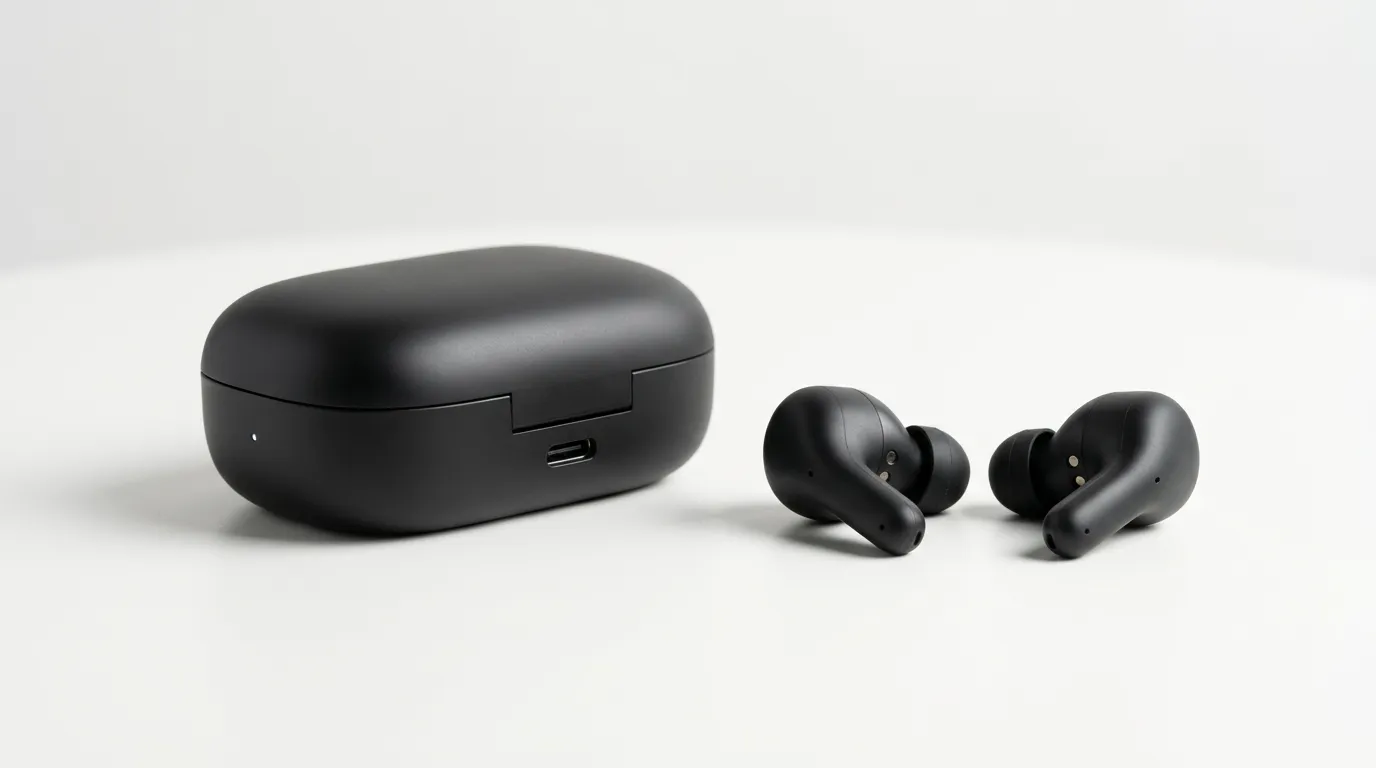
Prompt:
"@image1 is the consented spokesperson reference. @image2 is the black wireless earbuds product reference. Generate a realistic 5-second product advertisement where the person from @image1 presents the earbuds from @image2 in a premium studio setting. Keep the person's face and hairstyle consistent with @image1. Keep the earbuds shape, black color, charging case, and product details consistent with @image2. Use smooth camera movement, clean lighting, and a modern tech-ad style."
Why this example works: the prompt assigns a clear role to each upload. `@image1` is the person reference, while `@image2` is the product reference. This is much easier for the model to follow than saying "use these images" without labels.
Prompt Tips For Better Human-Face Consistency
Good prompts for Seedance real face generation are specific, but not overloaded. The model needs to know what the person should preserve and what can change.
Use prompts that mention:
- what `@image1` represents;
- the type of shot, such as close-up, medium shot, or upper-body;
- the motion level, such as subtle head movement or slow turn;
- the expression, such as calm, friendly, confident, or neutral;
- the environment and lighting;
- what should stay consistent, such as face, hairstyle, outfit, and age;
- what should not happen, such as face morphing, extra people, or distorted hands.
For most real face tests, start with restrained motion. Speaking, blinking, nodding, and small hand movement are easier to evaluate than fast dancing, spinning, or extreme camera motion.
Common Problems And Fixes
The face changes too much
Use a clearer face reference, reduce action intensity, and explicitly ask Seedance to keep the face, hairstyle, age, and facial structure consistent with `@image1`.
The person looks realistic but not like the input
Make the prompt more reference-driven. For example, write "`@image1` is the person reference" near the start of the prompt and describe the person role clearly.
The motion looks unnatural
Use a shorter duration and simpler movement. Ask for subtle blinking, small head movement, and natural posture before testing more dramatic camera motion.
The product changes shape in the ad example
Label the product image separately with `@image2` and describe the product details that must stay stable, such as color, case shape, logo area, and material.
The output feels too generic
Add a concrete use case. "Product launch video," "creator intro," "B2B software demo," and "premium earbud ad" give Seedance more useful direction than "make this realistic."
Responsible Use For Real Face Video Assets
Real face video generation needs stricter judgment than generic scenery or product animation. Use references only when you have permission, ownership, or a legitimate production agreement.
Practical safeguards include:
- document consent for people shown in uploaded references;
- avoid misleading impersonation or undisclosed synthetic endorsements;
- review outputs before publishing;
- remove failed or distorted generations from customer-facing workflows;
- separate internal tests from public campaign assets.
Conclusion
The fastest way to test Seedance real face generation is through the PiAPI Seedance 2.0 playground. Choose Less Restriction, choose Face Reference, upload a clear consented person image, set a short test duration, and write a prompt that labels the uploaded reference with `@image1`.
Once the result quality is strong enough, you can decide whether the workflow should stay as a manual playground process or move into an API/private asset setup for reusable face and product references.
Start testing Seedance 2.0 and get your API access via PiAPI today!
Unlock the power of 20+ AI models with PiAPI - image, video, chat, music, and more. Sign up today and start building smarter, faster, and at scale.
FAQ
What is Seedance real face generation?
Seedance real face generation is a reference-guided video workflow where a human face or person image helps Seedance generate a realistic video while preserving the person's general appearance and role.
Do I need Private Asset Library for the playground workflow?
No. For the playground workflow in this tutorial, you can upload a real-person reference directly in Face Reference mode. Private Asset Library is mainly for reusable, verified, or API-managed references.
How should I reference uploaded images in the prompt?
Use labels such as `@image1` and `@image2`. For example, write "`@image1` is the consented spokesperson reference" or "`@image2` is the earbuds product reference." Clear labels help Seedance understand each uploaded image's role.
What settings should I start with?
Start with Less Restriction, Face Reference, 5 seconds, 720p, and 16:9. These settings are simple enough for quick review before testing longer duration, higher quality, or more complex motion.
Can I use a product image and a face image together?
Yes. Upload the person as one reference and the product as another reference, then explain both in the prompt. The ad example in this tutorial uses `@image1` for the person and `@image2` for the earbuds.
Is this the same as face swap?
No. Treat this as reference-guided AI video generation, not exact face swap or pixel-perfect compositing. The face image guides the generated result, but the output is still a new AI-generated video.