
Google Veo 3 Prompt Guide: Best Practices, Templates & Example Prompts
Powered by Google, Veo 3 is a high-quality video generation, and with the Veo 3 API you can turn text-to-video (T2V) or image-to-video prompts (I2V) into cinematic clips in just a few lines of text.
But Veo AI is only as good as the instructions you give it. In this guide, we’ll walk through Google’s official Veo prompt best practices and turn them into a practical, developer-friendly process you can follow when calling the Veo 3 API via PiAPI.
In this blog, we will cover:
1. How Veo's safety filters influence which prompts are allowed
2. The key elements every Veo prompt should contain
3. A simple step-by-step framework to build strong T2V / I2V prompts
4. Examples and a sample copy-paste template you can adapt for your own Veo API workflow
What is Veo 3 & Veo 3 API?
Veo 3 is a generative AI video model from Google designed to create rich, cinematic video from natural language and images. It understands subjects, motion, style and camera language well enough to approximate real-world filmmaking.
The Veo 3 API, also referred to as the Veo AI API, exposes this capability to developers. Through PiAPI, you send a text prompt or image and text prompt, and receive rendered video clips that you can embed into apps, landing pages or creative tools. The clearer and tighter your prompt, the more on-brand, consistent and production-ready your video generation will be.
Quick Veo 3 Prompt Template
Structure: Subject + Action + Style + Camera positioning and motion + Composition + Focus and lens effects + Ambiance + Audio cues
Example: A lone traveler standing on a mountain ridge, slowly looking across the valley below, cinematic documentary style, slow drone push forward from behind the subject, subject centered with expansive mountains in the background, shallow depth of field with a 50mm lens and soft bokeh, warm golden sunset lighting with mist rolling through the valley, soft wind sounds and distant birds.
Safety Filters & Responsible Prompts
Although your generation possibilities are broad, some safety measures are in place to guide responsible use. Every Veo request runs through Gemini safety filters before any video is generated. If a prompt includes vulgar, violence, sexual content, hate, illegal activity or targets real individuals in harmful or deceptive ways, the request can be blocked or the output may be refused.
For a stable integration, treat safety as part of your prompt design. Keep scenarios brand-safe and neutral. Focus on products, environments, fictional characters, and abstract or cinematic scenes. Avoid celebrity likenesses, political messaging, and anything that could be interpreted as targeted harassment or misinformation.
If a prompt is rejected, do not fight the system, simplify it. Strip out sensitive details, keep the creative idea, and reframe it as something Veo is allowed to render- for example, shifting from a real person to a fictional character, or from a controversial event to a generic city scene.
Best practise for prompting Google Veo 3
According to Google API docs, good prompts are descriptive, intentional, and cinematic. A simple workflow looks like this: decide what the video is for, describe what is in the shot, what is happening, and what it should sound like, then layer in style and camera language.
Start with the purpose. Are you generating a product demo for a landing page, a short teaser for social, a piece of looping B-roll behind UI, or a portrait-style character shot? Once the use case is clear, it becomes easier to decide how tight the framing should be, what mood you want, how much motion you need, and whether the soundtrack should feel quiet, energetic, or atmospheric.
From there, think in terms of a few core elements:
1. Subject is what the camera sees. This could be a neon-lit city street, a fitness coach in a studio, a sleek smart speaker on a desk, or a drone flying over a forest.
2. Action is what happens in the scene. A character can walk toward the camera, a barista can pour a latte, steam can rise from a cup, or the camera itself can glide past skyscrapers.
3. Style sets the visual direction. You might want a cinematic sci-fi look, a film noir aesthetic with strong shadows, a bright playful cartoon style, or a realistic documentary feel.
4. Camera positioning and motion describe how the viewer experiences the scene. You can place the camera at eye level or above, ask for a slow dolly-in toward the subject, request an aerial top-down shot of a city, or have the camera orbit around a product.
5. Composition tells Veo how close or wide the shot should be. A wide establishing shot sets the environment. A medium shot balances subject and context. A tight close-up on a logo or face pushes attention to one detail. A two-shot keeps two people in frame at the same time.
6. Focus and lens effects control sharpness and perspective. Shallow focus with a softly blurred background makes the subject stand out. A macro lens emphasizes small product details. A wide-angle lens stretches space and captures more environment.
7. Ambiance finishes the mood with lighting and color. Warm golden-hour light feels inviting and natural. Cool blue tones work well for night scenes or tech aesthetics. Soft morning fog or light rain can add atmosphere without needing extra characters.
8. Audio cues (dialogue, SFX, ambient sound) help Veo 3 generate a synchronized soundtrack. With Veo 3, you can provide cues for sound effects, ambient noise, and dialogue directly in your prompt. Use quotes for specific lines of speech, for example: "This must be the key," he murmured. Describe sound effects explicitly, such as "tires screeching loudly, engine roading" or "crowd cheering in the distance". For ambient noise, describe the environment’s soundscape, like "a faint, eerie hum resonates in the background" or "soft cafe chatter and clinking cups."
You do not need every element in every prompt. But if you consistently cover subject, action, style, and at least one cinematic detail such as camera, composition, focus, ambiance, or audio cues, Veo has enough information to generate consistent, controllable results in both the visuals and the soundtrack.
Veo 3 API Examples
We’ll generate a few complete Veo 3 prompts that combine visuals and audio cues, so you can see how AI video generation performs optimally with Veo 3 API. For I2V tasks, we first generate the input image using our Nano Banana Pro API. Check it out for superb quality AI image generation!
Example 1: Product demo in an office
We will begin with a T2V task. In this first example. we'll craft a Veo 3 prompt for a clean, landing-page-ready product demo shot.
Prompt: A sleek silver laptop on a wooden desk in a bright modern office, clean fintech commercial style, eye-level camera with a slow dolly-in, medium shot, shallow focus with the laptop perfectly sharp and the background softly blurred, warm afternoon sunlight streaming through large windows, soft office ambiance with quiet keyboard typing and distant chatter, subtle UI notification sound as a new transaction appears on screen.
Example 2: Cinematic street scene with dialogue
For the second example we will go with T2V task. In this example, we will create a cinematic scene, which Veo 3 absolutely excels in.
Prompt: A young man in a dark hoodie standing under a flickering streetlamp on a rainy neon-lit city street at night, cyberpunk cinematic style, close-up shot from the chest up, raindrops hitting his shoulders, shallow focus with sharp detail on his face and eyes, cool blue and magenta reflections on the wet pavement, he whispers ‘This must be the key,’ as a faint synth drone hums in the background and distant traffic noises echo softly down the street.
Example 3: Café lifestyle shot with ambient sound
Here, we have done a I2V generation with 2 inputs, an image and a text prompt. We first created a warm café lifestyle shot that focuses on environment, mood, and ambient sound.
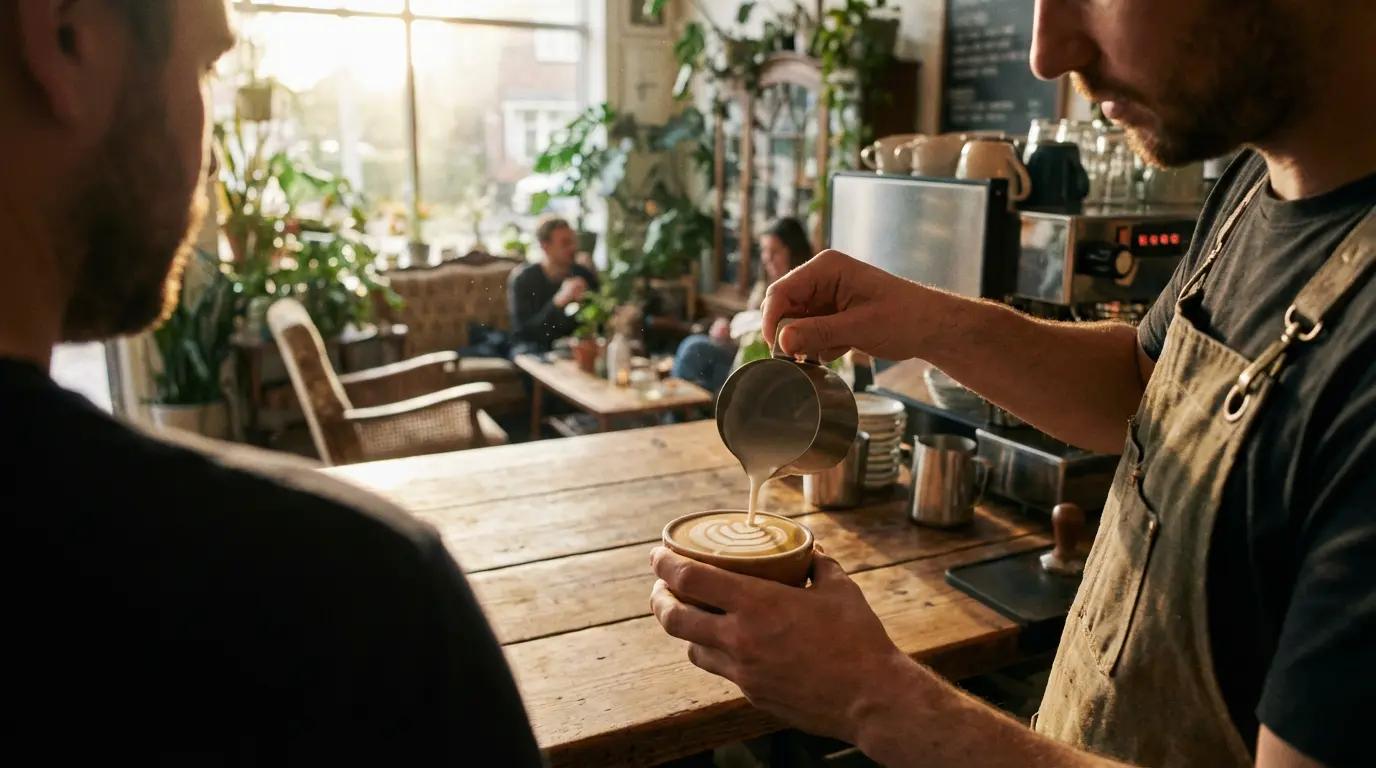
Then, together with a text prompt, we generated a wonderful scene of a café with ambient sound.
Prompt: A cozy café interior with a barista preparing a latte behind a rustic wooden counter, warm lifestyle commercial style, medium shot from behind a customer sitting at the bar, soft golden morning light coming through the windows, shallow focus on the latte art as the barista finishes the pour, gentle café ambiance with low chatter, clinking cups and the quiet hiss of the espresso machine in the background.
Generated Veo 3 Video
Example 4: Action scene with strong SFX
Here, we have also done a I2V generation with 2 inputs, an image and a text prompt. We first created a red sports car racing along a coastal highway at sunset, cinematic action movie style.
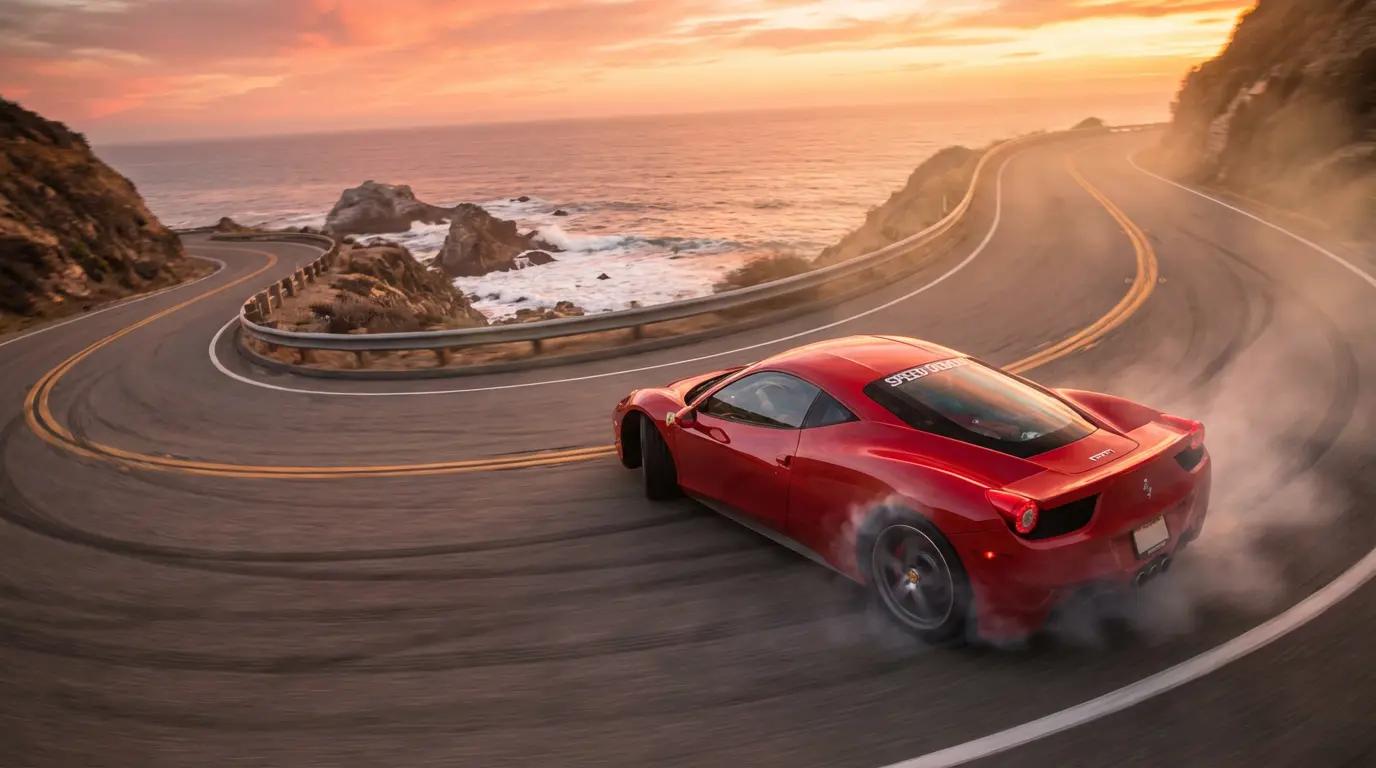
Then, together with a text prompt, we generated an action packed scene perfect for a movie clip.
Prompt: A red sports car racing along a coastal highway at sunset, cinematic action movie style, dynamic tracking shot from behind and slightly above the car, wide-angle lens to capture the sweeping curves of the road and crashing waves below, warm orange and pink sky reflecting off the car’s body, loud engine roaring, tires screeching as it drifts around a sharp corner, wind rushing past the camera and distant waves crashing against the rocks.
Generated Veo 3 Video
Veo AI API with PiAPI
Once your prompt is ready, wiring it into your PiAPI integration is straightforward. In your workflow, you choose the Veo model, pass the prompt string, and optionally specify other parameters. With Veo AI API, we offer the customisability of the aspect ratio, duration, resolution of the video output.
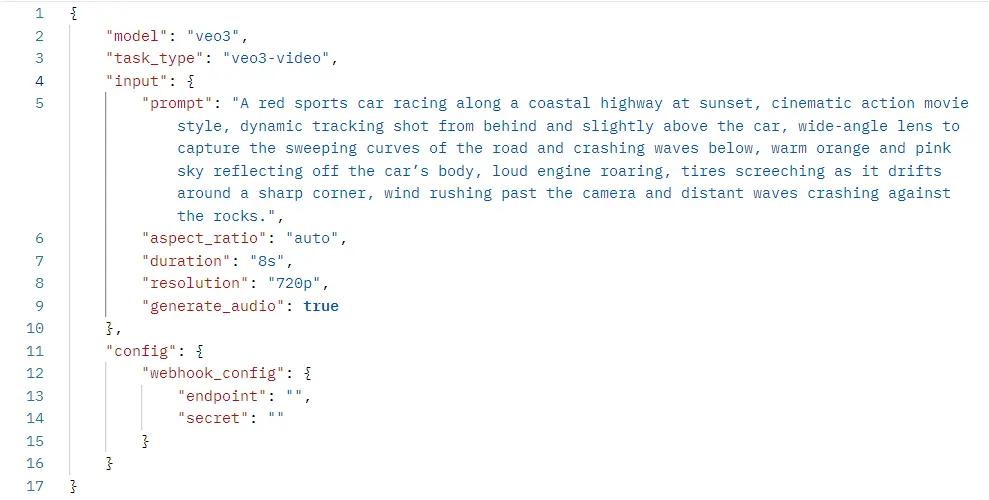
We make it simple by handling all the backend processes throughout your AI video generation with our Veo API. From there, you decide whether to pipe it into a CMS, a landing page builder, a creative automation flow, or a custom tool your team uses internally.
Conclusion
Based on the four examples above, it’s clear there’s no single “perfect” Veo 3 prompt format - but each structure plays a specific role in your workflow. Product demos, cinematic street scenes, café lifestyle shots, and high-energy action clips all lean on the same core building blocks, just tuned differently for framing, motion, mood, and sound. Once you see these patterns, Veo 3 stops feeling random and starts behaving like a controllable, production-ready tool.
In practice, the best approach is to treat these as reusable prompt templates: iterate quickly by swapping subjects, styles, and audio cues, then refine your strongest versions into “hero” prompts you reuse across campaigns. With Veo 3 exposed through a single PiAPI integration, it becomes easy to test variations, standardise your best-performing patterns, and plug consistent video generation directly into your product or content pipeline.
Unlock the power of 20+ AI models with PiAPI — image, video, chat, music, and more. Sign up today and start building smarter, faster and at scale.