
How to Create a FIFA World Cup AI Video From Your Photo
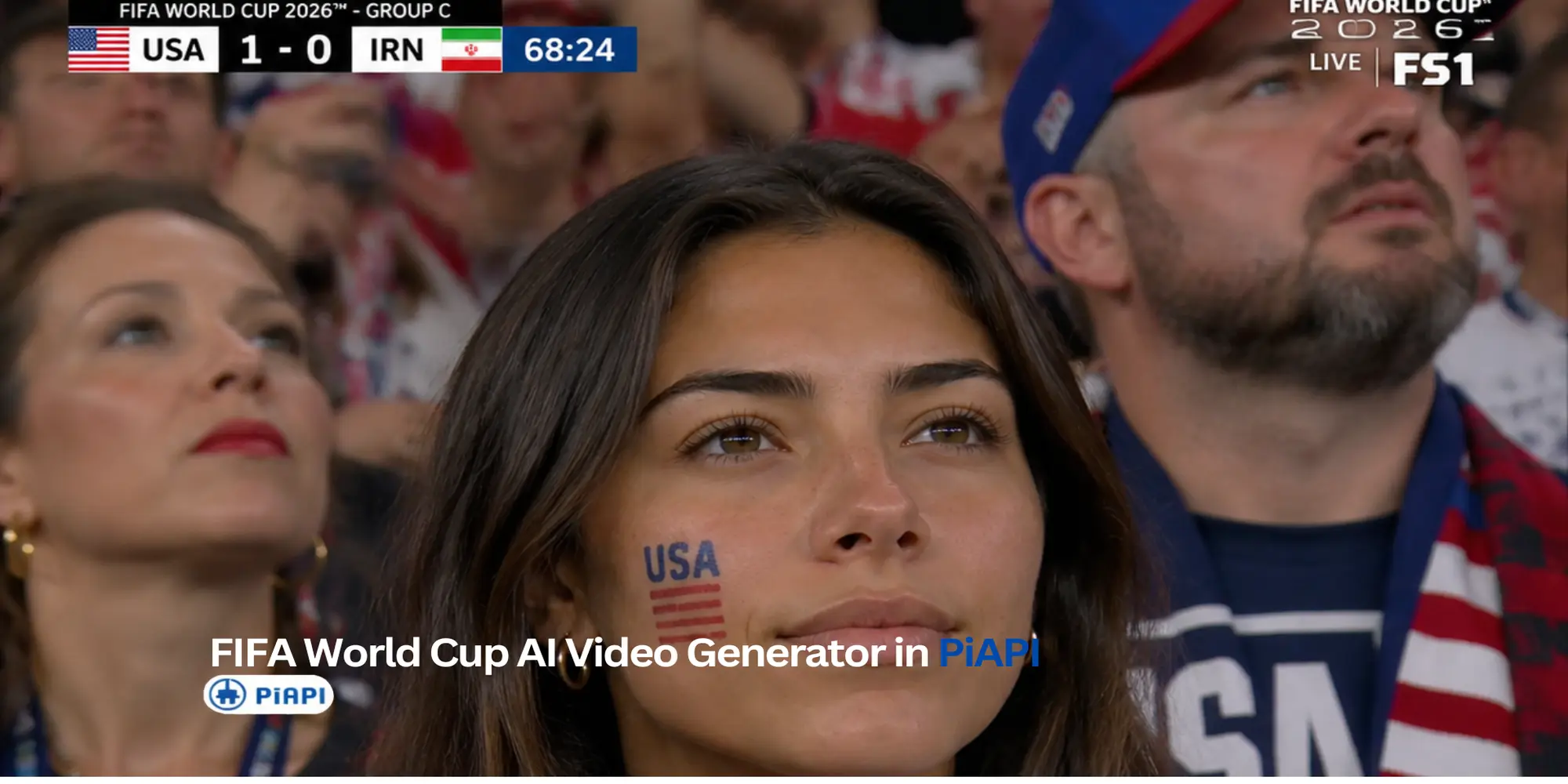
A FIFA World Cup AI video generator lets you turn a portrait into a World Cup-style football fan-cam image, then animate that image into a short AI video. Instead of trying to generate the final video in one step, PiAPI uses a guided photo-to-image-to-video workflow so you can review the football fan-cam image before creating the final clip.
If you want to try the workflow directly, open the FIFA World Cup AI Video Generator and choose the FIFA World Cup mode.
Quick Answer: How Do You Create a FIFA World Cup AI Video?
Quick answer: To create a FIFA World Cup AI video, upload a clear portrait, choose FIFA World Cup mode, select the country style you want, generate a World Cup-style fan-cam image, review the result, then animate the approved image into a short football AI video.
The basic workflow is:
- Upload a clear portrait photo.
- Choose FIFA World Cup mode.
- Select the country style you want.
- Generate a World Cup-style fan-cam image.
- Review the still image.
- Animate the approved image into a short AI video.
This two-step flow gives you more control because you can regenerate the still image before spending time or credits on video generation.
Key Takeaways
- A FIFA World Cup AI video generator works best as a two-step workflow: create the fan-cam image first, then animate the approved image.
- The most important input is a clear portrait with a visible face, balanced lighting, and one main subject.
- Country style selection helps guide the visual direction, but it should be treated as creative inspiration rather than official jersey or logo generation.
- The embedded blog demo is for Step 1 only. Use it to test the World Cup-style image, then open the full generator when you are ready to create the video.
Try Step 1: Generate a World Cup-Style Image
Use the embedded demo below to test Step 1 inside this article. Upload a portrait, select the country style you want, and generate a World Cup-style football fan-cam image. The blog demo stays compact and focuses only on the image-to-image step.
What Is a FIFA World Cup AI Video Generator?
A FIFA World Cup AI video generator turns a user photo into a World Cup-style football fan-cam image, then animates that approved image into a short AI video. For this article, the useful distinction is control: the still image is generated first, so you can check the face, country styling, and stadium scene before creating motion.
Definition: A FIFA World Cup AI video generator is a photo-to-video workflow that first transforms a portrait into a World Cup-style football fan-cam image, then uses that image as the starting frame for a short AI-generated video.
On PiAPI, the FIFA mode is part of the broader AI sports video generator. The tool is designed for World Cup-style, football-inspired fan visuals: stadium lighting, national-team-inspired colors, crowd energy, and broadcast-style framing.
How the Two-Step World Cup AI Video Workflow Works
The PiAPI workflow separates image creation from video animation. That may feel like one extra step, but it solves a real creative problem: video generation is slower and more expensive than reviewing a still image.
Step 1: Upload a Portrait Photo
Start with a clear portrait where the face is visible. A front-facing or slightly angled photo usually works better than a distant full-body shot. The tool needs enough facial detail to preserve the subject while changing the scene into a football fan-cam moment.
Good input photos usually have:
- a visible face
- balanced lighting
- minimal motion blur
- no heavy sunglasses or face covering
- one main subject
- enough image detail for identity preservation
Step 2: Generate a World Cup-Style Fan-Cam Image
After the photo is uploaded, select the country style you want to guide the jersey colors, supporter styling, flags, and fan merchandise direction. Then generate the World Cup-style fan-cam frame. The result should look like the subject is sitting in a packed football stadium, wearing national-team-inspired colors, surrounded by crowd energy and broadcast-style visual cues.
Before you animate anything, check:
- whether the face still looks like the source person
- whether the jersey or country styling feels appropriate
- whether the stadium background looks natural
- whether the broadcast-style overlays are not too distracting
- whether the image is strong enough to become a video
Step 3: Review the Image Before Video
This is the main advantage of the two-step workflow. If the still image is not good enough, you can adjust the country style or try a better photo before moving to video.
For many AI video workflows, the starting frame shapes the entire clip. A clean still image gives the video model a stronger reference for face, clothing, lighting, and background. A weak still image can make the final video harder to control.
Step 4: Animate the Image Into a Football AI Video
Once the still image looks right, use it as the input for the video step. The animation turns the approved fan-cam image into a short football AI video with subtle motion, natural facial movement, and a live-broadcast feeling.
The goal is not to replace real sports footage. The goal is to create a short social-style AI fan-cam clip from your own portrait.
How to Make a Football AI Video From a Photo
If you are searching for a football AI video or an AI football video generator, the same workflow applies: start with a photo, create the football-themed image, then animate the image into a video.
Short answer: To make a football AI video from a photo, use the photo as a reference image, generate a football-themed still image first, then animate that still image into a short video. This works best when the still image already has the right face, outfit direction, and stadium scene.
The FIFA World Cup angle is more specific than a generic football video generator because it focuses on a fan-cam look: national colors, stadium lighting, crowd atmosphere, and a televised sports frame.
For soccer AI video searches, the intent is similar. Some users call the sport football, while others search for soccer AI video or soccer AI video generator. In this article, football and soccer refer to the same style of fan-cam AI video workflow.
If you want the baseball version of this workflow, see the Korean Baseball AI trend video guide , which uses the same review-before-video pattern for KBO-style fan-cam content.
FIFA World Cup AI Video Prompt Tips
You do not need to write a full football AI video prompt from scratch when using PiAPI's guided FIFA mode. The tool uses preset image and video prompts so the workflow is easier for beginners.
A good World Cup-style prompt direction usually asks the model to:
- preserve the subject's identity
- use national-team-inspired colors
- place the person in a packed football stadium
- use realistic night-match lighting
- create a broadcast-style fan-cam frame
- keep overlays subtle and believable
- avoid adding new text or distracting graphics during animation
Use style language as inspiration, not a guarantee of official branding. Safer terms include World Cup-style, country-inspired, national-team-inspired, and football fan-cam.
Avoid asking for exact official kits, logos, tournament marks, or official team branding. AI-generated outputs can vary, and the tool is not an official FIFA, federation, club, or tournament asset generator.
Best Photos for World Cup-Style AI Videos
The best input for a World Cup AI photo generator or video generator is a clean portrait. The model needs enough visual information to preserve the face while changing the outfit, background, lighting, and sports setting.
Use this checklist before generating:
- Choose a clear portrait with one main person.
- Keep the face visible and not heavily cropped.
- Avoid heavy blur, extreme filters, or dark shadows.
- Use a photo where the subject is looking toward the camera or slightly off-camera.
- Avoid crowded group shots for the first test.
- Use a portrait crop if you want a stronger fan-cam result.
If the first image looks unstable, try a brighter photo or one where the face is larger in the frame. A better input photo usually improves both the still image and the final football AI video.
Can You Choose a Country Style?
Yes. The FIFA World Cup mode is designed around country style selection or random national-team styling. That means you can guide the look toward a country-inspired football fan style, or leave it random if you want the tool to choose the direction.
Direct answer: Yes, you can choose a country style to guide colors, supporter styling, and fan-cam mood. The result should be understood as country-inspired creative styling, not as official kit, federation, or tournament branding.
Use this feature for:
- country-inspired colors
- football supporter styling
- fan merchandise direction
- stadium atmosphere
- national-team-inspired visual mood
This does not mean the output will reproduce official jerseys, logos, or tournament marks exactly. Treat the country style as creative direction, not official merchandise generation.
Why Review the Image Before Generating the Video?
Reviewing the image first helps you avoid wasting video generation on a weak starting frame. If the World Cup-style image does not preserve the face, country styling, or stadium look well, the final video usually will not fix those issues.
That is why this blog lets you test Step 1 first. Generate the fan-cam image here, choose the result you like, then open the full FIFA World Cup AI Video Generator to animate it.
Try the FIFA World Cup AI Video Generator
If you have a portrait ready, you can try the FIFA World Cup AI Video Generator on PiAPI. Upload your photo, choose the FIFA World Cup mode, generate the fan-cam image, then animate the approved image into a short AI sports video.
For the best first test, use a clear portrait and start with a country style that matches the kind of football fan-cam look you want. If the still image is not right, regenerate the image before moving to video.