
How to Consistently Animate Ghibli-Style AI Images Into Cinematic Videos
May 29, 2026
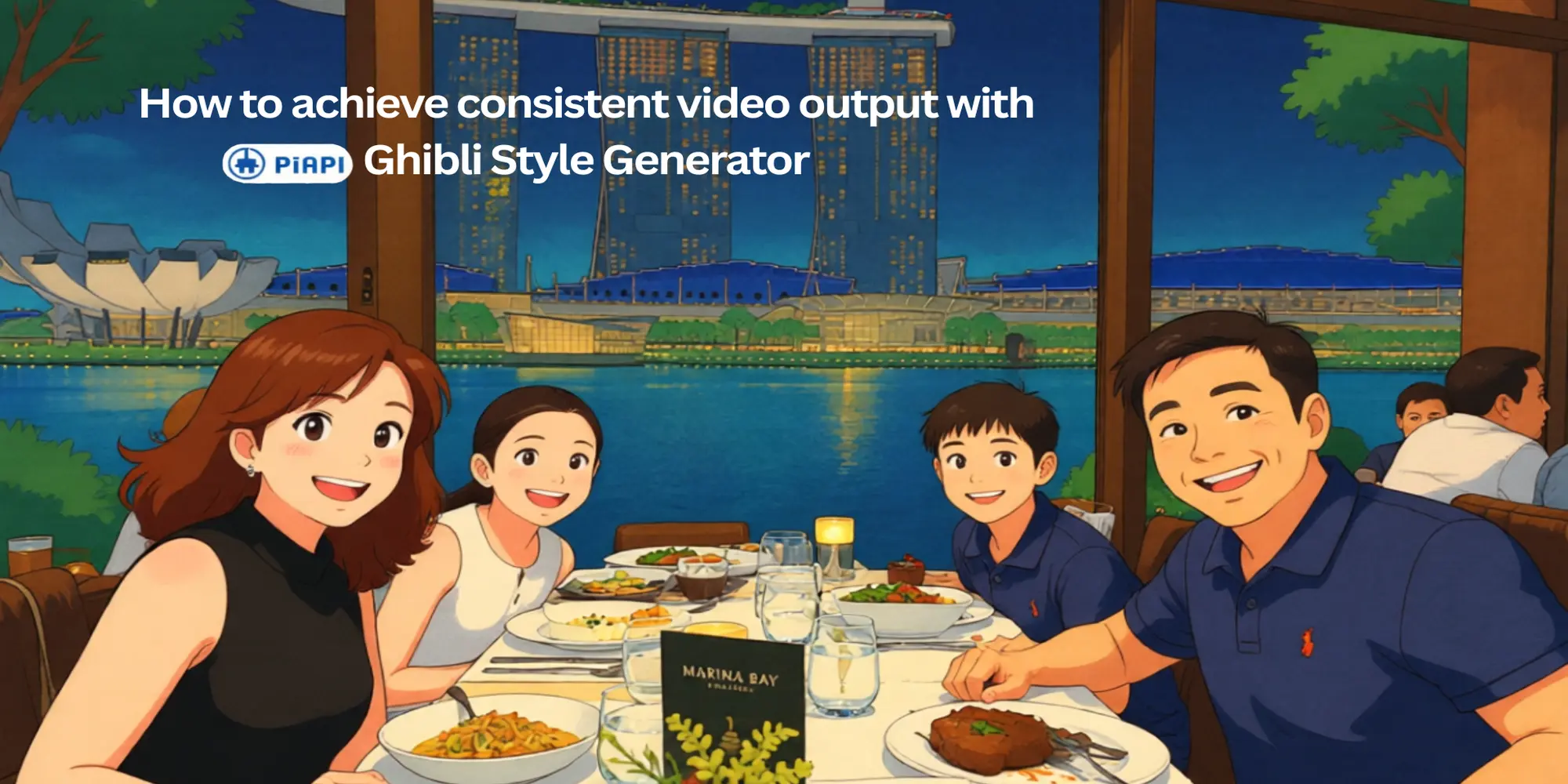
Ghibli-style AI images can look beautiful as stills, but the video step is where consistency usually breaks. A face may shift, the background may melt, the colors may become too generic, or the motion may feel more like a filter than a cinematic scene.
The most reliable workflow is simple: create a clean Ghibli-style image first, then animate that finished image with an image to video AI generator. Separating style creation from motion generation gives the video model a stronger reference for the character, colors, lighting, and composition.
With PiAPI's Ghibli Style AI Generator , the playground already includes preset prompts for the Ghibli-style photo workflow. You can upload a photo, generate a stylized image without writing a prompt, then use Animate Image mode to turn that still into a short cinematic clip. Motion prompts are optional and should stay simple.
Quick answer: To animate a Ghibli-style AI image consistently, first convert your photo into a Ghibli-style still image, then pass that image into an image-to-video AI generator. Add only simple motion notes, such as gentle wind, a slow camera push, or drifting clouds, so the model preserves the original character, colors, and composition.
Definition: Ghibli image-to-video is an AI workflow that turns one Ghibli-inspired still image into a short animated clip. The best results usually come from locking the visual style in the still image first, then adding restrained camera or environmental motion.
Style note: "Ghibli-style" here refers to a warm, hand-drawn, storybook anime look inspired by classic animated-film aesthetics. PiAPI is not affiliated with Studio Ghibli.
Why Ghibli-Style AI Videos Often Lose Consistency
Animating an image is harder than restyling a still photo because the model has to preserve several things at the same time: the subject, the pose, the background, the lighting, the color palette, and the motion. If the input is a normal photo, the model may also have to convert the style while creating motion.
That is why direct image-to-video can work when the source image is visually readable, but become inconsistent when the model has too much to interpret. A clear portrait, pet photo, or well-composed travel image may animate well right away. A crowded scene, messy background, tiny face, or detailed object scene is more likely to drift.
The main goal is not just movement. The goal is controlled movement that keeps the original image recognizable.
The Most Consistent Workflow: Stylize First, Animate Second
For the most consistent Ghibli-style video, use a two-step workflow.
- Upload your original photo.
- Convert it into a Ghibli-style image first .
- Review the still image for subject accuracy, lighting, and background quality.
- Pass the generated still image into Animate Image mode.
- Add optional motion notes only if you want a specific camera or environmental movement.
- Generate one or more takes and keep the best version.
This workflow works because the video model receives a finished visual reference. It does not need to invent the Ghibli-style look and the motion in the same step. It can focus on animating the already-stylized character and scene.
Use this workflow when the original photo is complex, when the person or pet needs to stay recognizable, or when the final result needs a soft cinematic look rather than a generic anime filter. If you need more detail on the still-image step, start with this guide on how to create the Ghibli-style still image first .
When Direct Image-to-Video Can Work
You can also upload the original image straight into the Ghibli video workflow. This shortcut can work when the source image has a readable subject, strong lighting, and a composition the model can understand.
Direct image-to-video is most likely to work when the image has:
- one clear subject or a simple group composition
- an uncluttered or readable background
- good lighting
- a simple pose
- no tiny faces or hard-to-read hands
- a composition that already feels close to an animated scene
If the first result is not satisfying, regenerate once or switch to the stylize-first workflow. Regeneration can fix small issues, but if the style keeps drifting, the input probably needs a stronger Ghibli-style still image before animation.
How to Prepare Your Image Before Animation
The input image still matters, even when the AI handles the style. A cleaner image gives the model fewer decisions to make.
Use a source image with a clear subject and enough space around the subject for motion. A tight face crop can work for a portrait animation, but a cinematic camera push or pan needs more room. For landscape and travel photos, choose images with a readable foreground, middle ground, and background.
Avoid source images with heavy blur, low light, crowded people, confusing limbs, reflective glass, busy signage, or tiny important details. These issues can become more noticeable once the image moves. If the image needs cleanup before animation, use an image editing workflow first, then animate the cleaner result.
| Shot type | Best source image | Best motion direction |
|---|---|---|
| Portrait | Clear face, simple background | subtle blinking, gentle breeze, slow push-in |
| Pet | Visible eyes, ears, fur shape | soft head movement, breathing, background breeze |
| Travel scene | Strong landmark or landscape | slow pan, drifting clouds, parallax |
| Room or product | Clean composition, stable lighting | warm light flicker, subtle camera move |
| Story scene | Clear subject and environment | gentle environmental motion |
How to Write Motion Prompts Without Breaking the Style
Motion prompts should describe movement, not rewrite the whole image. If the prompt asks for a new outfit, new location, new action, and new mood all at once, the model has more chances to change the subject or lose the Ghibli-style look.
Use this simple image to video prompt formula:
preserve the original image + simple subject motion + simple camera motion + soft atmosphere
Maintain the original Ghibli-style character, colors, and composition. Add a slow cinematic camera push-in, gentle wind moving the hair and clothes, and soft clouds drifting in the background.For a no-prompt workflow, you can leave the motion field empty and use the preset animation behavior. Add a motion prompt only when you want to guide the movement. For deeper image-to-video testing after the Ghibli-style still is ready, use an advanced image-to-video model workflow.
Best Motion Ideas for Ghibli-Style Videos
Ghibli-style AI videos usually look better with restrained movement. The painterly look is easier to preserve when the motion feels like a quiet cinematic moment.
Good motion ideas include a slow camera push-in, a gentle side pan, subtle parallax between foreground and background, drifting clouds, grass moving in the wind, hair or clothing moving softly, warm sunlight flicker, blinking, or a slight smile.
Example 1: Photo to Ghibli Image, Then Ghibli Video
This example uses the recommended consistency workflow. The original photo is converted into a Ghibli-style still first, then the generated still is animated.
The still image gives the video model a cleaner reference. The final video can focus on motion while keeping the subject, colors, and storybook atmosphere more stable.
Example 2: Original Image Straight to Ghibli Video
This example uses the shortcut workflow. The original image is sent directly into the Ghibli image-to-video mode without first creating a separate still image.
Direct image-to-video can work when the input has a readable composition. If the output changes the subject too much or looks less stable than expected, regenerate or use the stylize-first workflow.
Stylize First vs Animate Directly
Use this decision guide when choosing a workflow.
| Input situation | Best workflow | Why |
|---|---|---|
| Complex real photo | Stylize first, then animate | The still image locks the style before motion begins. |
| Clear portrait | Direct can work, stylize first is safer | Simple faces are easier, but style drift can still happen. |
| Pet photo | Stylize first, then animate | Fur markings and body shape are easier to check in the still image. |
| Travel photo | Stylize first, then animate | The scene becomes more cinematic before motion is added. |
| Already anime-style image | Direct image-to-video can work | The image already gives the model a style reference. |
| Unsatisfying direct result | Regenerate or stylize first | Repeated drift means the input needs a stronger still reference. |
For most users, the decision is practical: if the source image is visually readable, test direct animation first; if the source image is crowded, unclear, or the output must stay recognizable, stylize first and animate the generated still.
Common Mistakes and How to Fix Them
Most failed outputs come from asking the model to do too much at once.
| Problem | Likely cause | Simple fix |
|---|---|---|
| The video does not look Ghibli-style enough | The original photo was animated directly and the style was weak | Convert the photo into a Ghibli-style image first, then animate. |
| The face changes during motion | The source image is unclear or the motion is too strong | Use a clearer input, reduce motion, or regenerate. |
| The background melts | The scene is too crowded or the camera movement is too aggressive | Crop the image, simplify the scene, or use slower motion. |
| The video feels chaotic | The motion prompt includes too many actions | Use words like slow, gentle, subtle, and cinematic. |
| The result looks like generic anime | The image lacks a strong storybook look | Use the preset Ghibli image workflow before animation. |
| The first take is close but imperfect | Normal image-to-video variation | Regenerate and compare multiple takes. |
How to Use PiAPI for This Workflow
PiAPI's Ghibli Style AI Generator gives you two paths inside the same playground.
Use Photo to Image when you want the most consistent result. Upload your original photo first, generate a Ghibli-style still image, and check whether the subject, colors, and scene feel stable. If the image looks good, use that generated image as the input for Animate Image.
Use Animate Image directly when your original image is already readable. This works best for clear portraits, pets, and clean scenes with an obvious subject. You do not need to write a prompt for the basic demo. If you want more control, add a short motion note such as slow camera push-in, gentle breeze, or clouds drifting in the background.
The main advantage is that you do not have to write a full Ghibli-style prompt from scratch. The style workflow is already preset, so your job is to choose the right input image, pick the right mode, and regenerate when a take is close but not quite right.
Final Takeaway
If you want the most consistent Ghibli-style AI video, do not make the video model solve everything at once. First create a clean Ghibli-style still image, then animate that image with subtle motion.
Direct image-to-video can still work when the input is simple or clearly composed. But when the result drifts, loses the style, or changes the subject, switch back to the stronger workflow: stylize first, animate second.
Start with the Ghibli Style AI Generator, generate a still image you like, then animate it into a short cinematic scene.
Related reading: see the Ghibli-style image generation API guide for an older API-focused look at Ghibli-style image generation.